







- To send a WA blast, make sure you already have an official WhatsApp Business API, such as Mekari Qontak.
- The differences between official and unofficial WA Blast can be seen from aspects of legality, risk of blocking, main features, blue blue tick, and ease of integration.
- There is a practical way to obtain an official WA Blast, namely registering with BSP Mekari Qontak, connecting a Facebook Business Manager account, and creating a WA Business account.
- It is important to send official WA blasts through WhatsApp Business API for data security, legality, and to avoid account blocking.
- Mekari Qontak helps make sending WA blasts easier, from logging in to the Mekari Qontak page, creating message templates, selecting contact lists, to scheduling delivery.
WhatsApp blast or WA blast is the sending of mass messages to thousands of numbers at once using WhatsApp Business API. With this feature, businesses can reach thousands of customers without having to save contacts one by one.
This WhatsApp Blast feature opens up great opportunities for businesses to reach customers more widely. Then, how do you blast WhatsApp safely?
Now, you don’t need to be confused because in this article, Mekari Qontak Blog will provide a guide on how to WA blast easily along with safe tips to avoid being blocked.
How to Get WhatsApp (WA) Blast Easily
There are two ways to obtain a WA Blast: officially and unofficially. It should be noted that you should use an official WA Blast via the WhatsApp Business API to build long-term brand awareness.
Furthermore, you can also access features that support the sales and marketing process, such as integration with CRM systems, omnichannel, and chatbots through the official WhatsApp Business API.
The following is how to get a WhatsApp blast from Mekari Qontak as an official WhatsApp Business API partner.
1. Register with Official BSP Mekari Qontak
The first step is to register with the official BSP Mekari Qontak as an intermediary with Meta. This process is important so that you can use the WhatsApp Business API officially.
2. Connect a Facebook Business Manager Account
After registering with Mekari Qontak, you need to connect a Facebook Business Manager account (or Meta Business Account). If you do not have an account yet, you will be directed to create a Meta Business Account first.
3. Create a WhatsApp Business Account and WhatsApp Business Profile
Next, create a WhatsApp Business Account and WhatsApp Business Profile. At this stage, you need to prepare a new phone number that has never been connected to the WhatsApp Messenger application or Business App.
4. Mekari Qontak WhatsApp Business API Account is Ready to Use
The WhatsApp Business API is ready to be used if the account is approved by Meta within 5 until 7 working days. You can utilize features such as blast, personalization, and CRM integration.
Differences Between Official vs Unofficial WhatsApp Blast
Below are the differences between official and unofficial WhatsApp blast that are important for you to understand to ensure data security and the trust of your business customers.
1. Official WA Blast
Basically, official WA Blast is a method of sending mass messages via WhatsApp that is approved and regulated directly by the WhatsApp Business API.
To use Official WA Blast, businesses cannot directly register with WhatsApp. You must work with an official WhatsApp Business Solution Provider (BSP), such as Mekari Qontak as a trusted partner.
Through official WA Blast, message delivery can be done without needing to save contact numbers first and the number of recipients is not limited.
In addition, official WA blasts are generally equipped with certification to guarantee customer data security, such as the WhatsApp Business API from Mekari Qontak, which is ISO/IEC 27001:2022 certified.
2. Unofficial WA Blast
Unlike the official WA Blast, an unofficial WA Blast refers to any form of mass messaging via WhatsApp that is not approved or allowed by WhatsApp.
Unofficial WA Blast can be obtained from third-party software, desktop software, and unauthorized modifications. These applications are not directly connected to the official WhatsApp Business API.
The use of unofficial WA blast is certainly very risky, such as threats of malware, data theft, and potential reputational loss for your business. Below is a table of differences between official and unofficial WA Blast.
Use Left/Right arrow keys to scroll horizontally.
| Comparison | Official WA Blast | Unofficial WA Blast |
|---|---|---|
| Legality | Legal and recognized by WhatsApp through official partners. | Illegal and not approved by WhatsApp; risk of violating Usage Policies. |
| Security | Highly secure due to end-to-end encryption and advanced data security systems. | Unsafe; business accounts are prone to malware, data theft, and damaged business reputation. |
| Blocking Risk | Very low or almost non-existent as it complies with WhatsApp policies. | Very high risk of the business account being blocked or banned by WhatsApp. |
| Blue Tick | Can apply for and obtain an official blue tick from Meta. | Cannot get a blue tick because it lacks official certification from Meta. |
| Features | AI Chatbot, message scheduling, CRM integration, auto-reply, & multi-device. | Usually only focuses on the mass blast feature without supporting features. |
| Integration & Scalability | Seamlessly integrates with CRM/other business systems, supports automation, large-scale personalization, and omnichannel strategies. | Almost no integration; creates data silos, hindering business efficiency & scalability. |
| Connection Time | Requires a registration and business verification process by Meta. | Claims it can be opened immediately after registration without an official verification process. |
| Technical Support | Official support available from WhatsApp and Official Partners. | Must rely on third-party developers who are not guaranteed. |
| Industry | Applicable to most industries. However, some sectors may require special approval or have restrictions per Meta policy. | Generally has no industry restrictions. However, this also means there is no oversight or compliance with Meta’s ethical policies. |
Some sectors that require special approval from Meta include medical services and political organizations.
How to Send WhatsApp Blast to Thousands of Numbers at Once with Mekari Qontak


After having an official WhatsApp Business API account, you can now directly send WA blasts. Below is a complete guide on how to use WhatsApp Blast to send messages in bulk.
1. Login to Mekari Qontak Dashboard
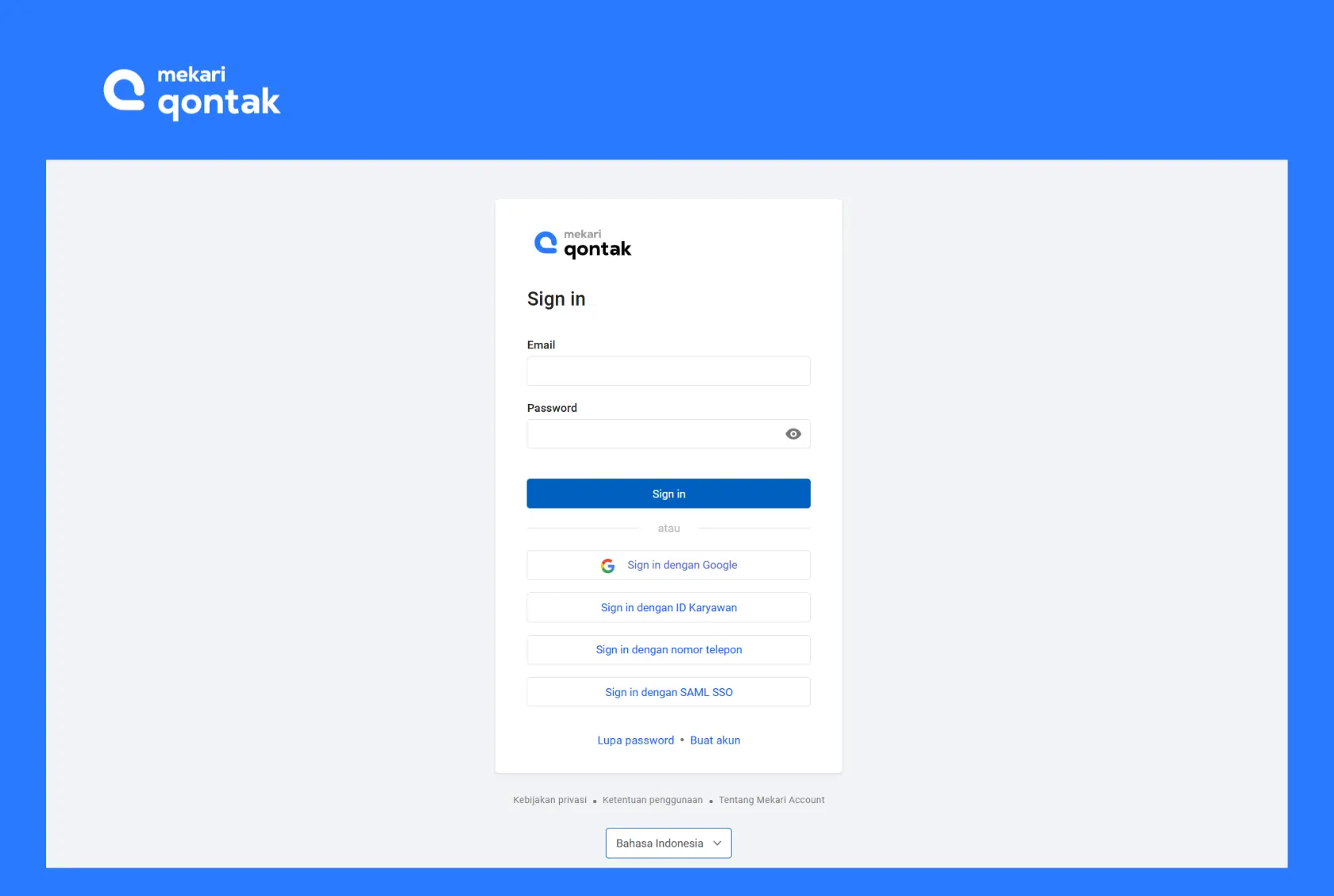
- Open your browser and access the Mekari Qontak site to enter the Mekari Qontak login page.
- Log in to your account by entering your email and password, then click “Sign in”.
2. Go to Campaign Menu
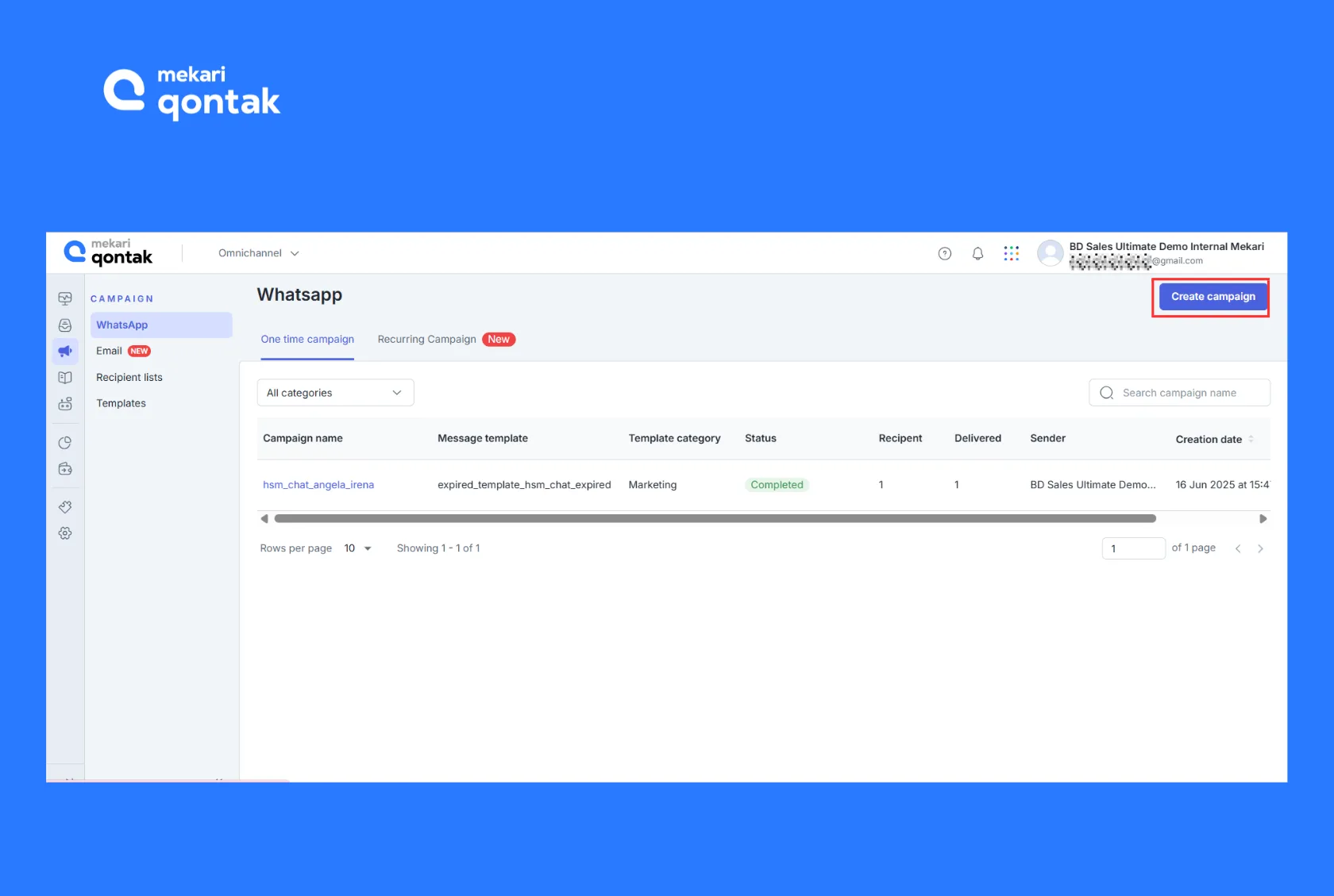
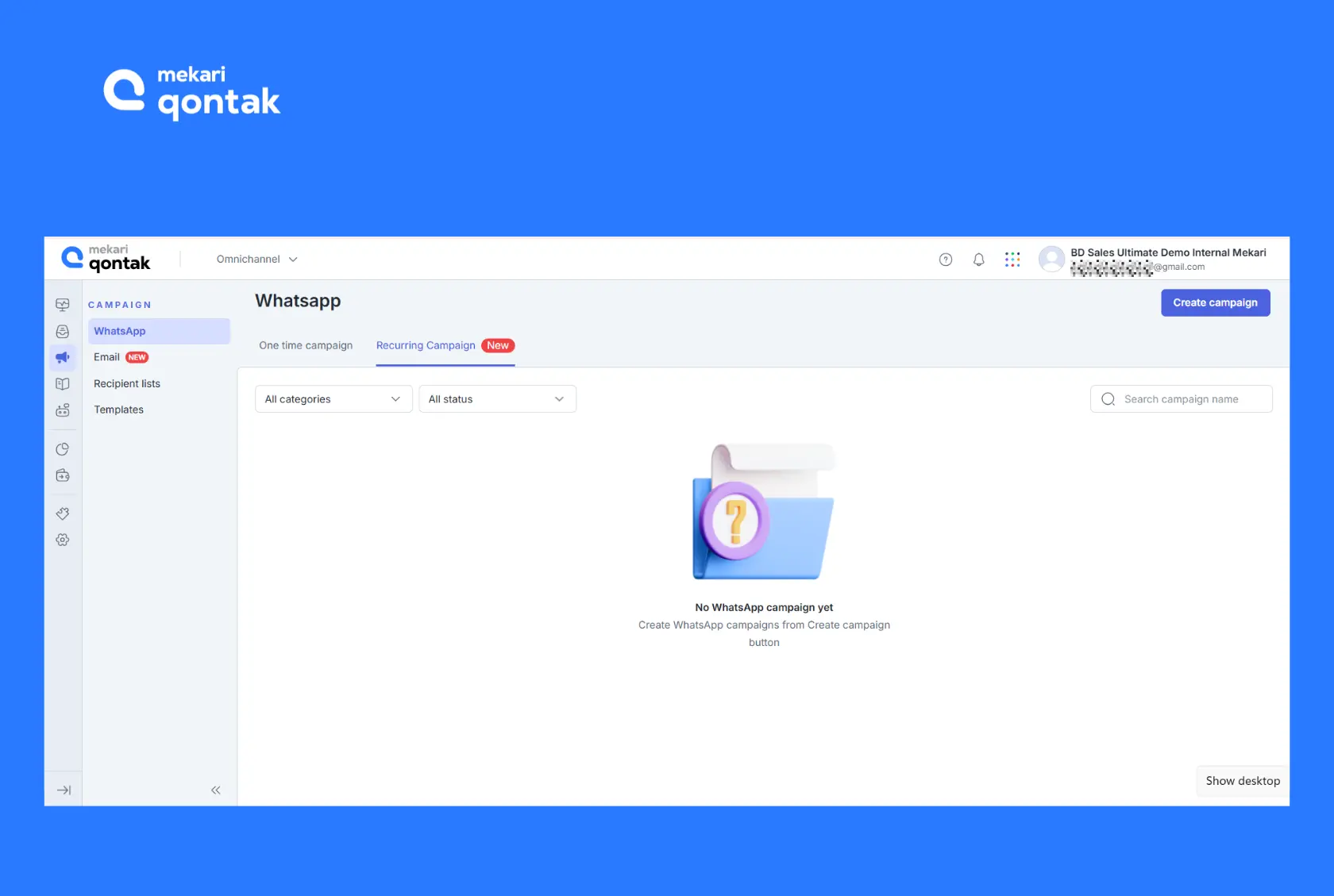
- After logging in, you will be directed to the main dashboard.
- On the left menu, click the “Campaign” option.
- Next, click the “WhatsApp” menu to see the list of campaigns that have been created.
3. Create a New Campaign
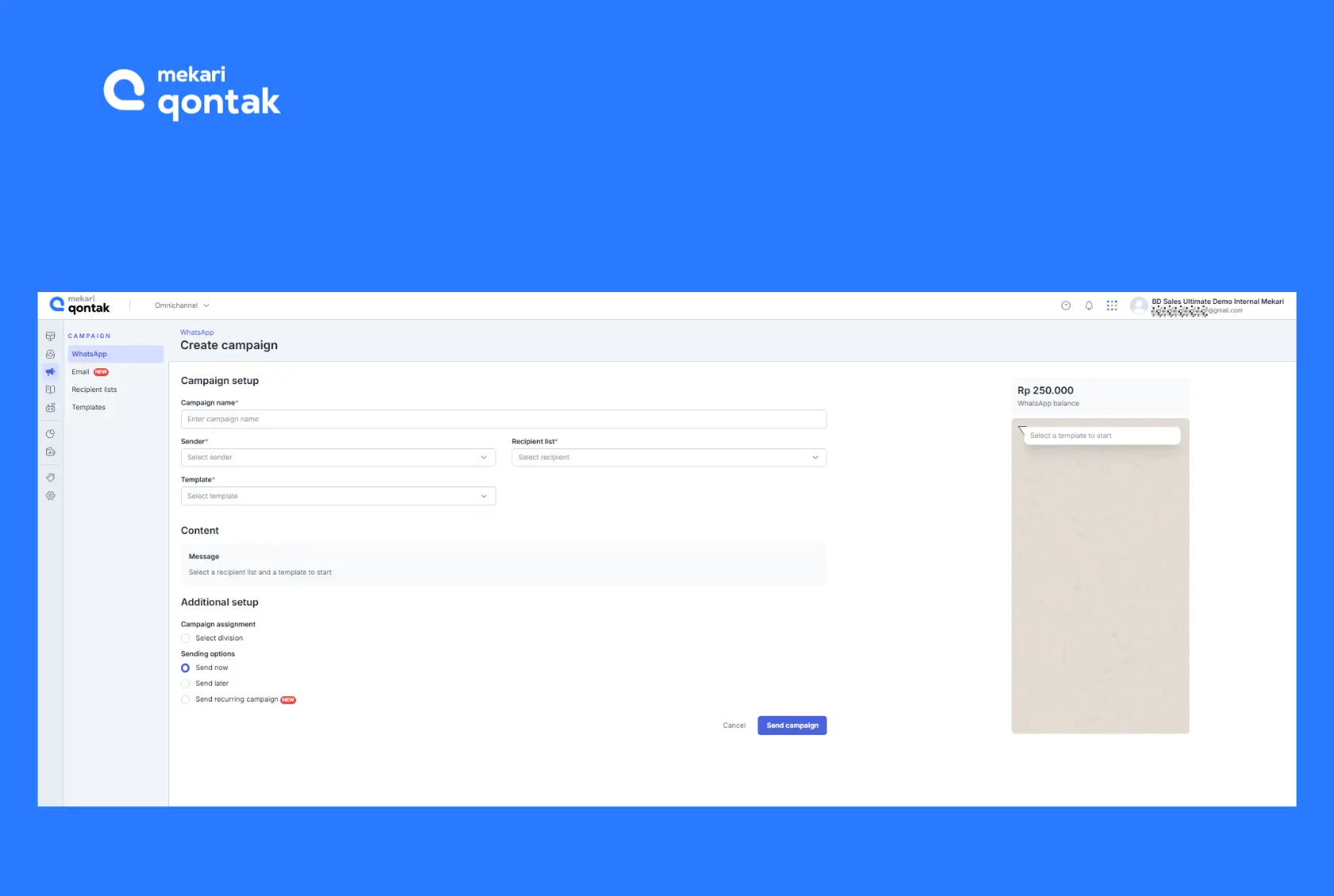
- Next, click the “Create Campaign” button.
- On the Campaign setup page, enter several pieces of information, such as the following.
- Campaign name
- Sender
- Recipient list
- Template
- Content
- Additional setup
- On the right side of the page, you will see the WhatsApp balance. To continue creating a campaign, make sure you have sufficient balance.
If your WhatsApp balance is insufficient for the number of contacts to be blasted, you will see a pop-up notification to refill the balance (top up).
4. Create or Select Message Template
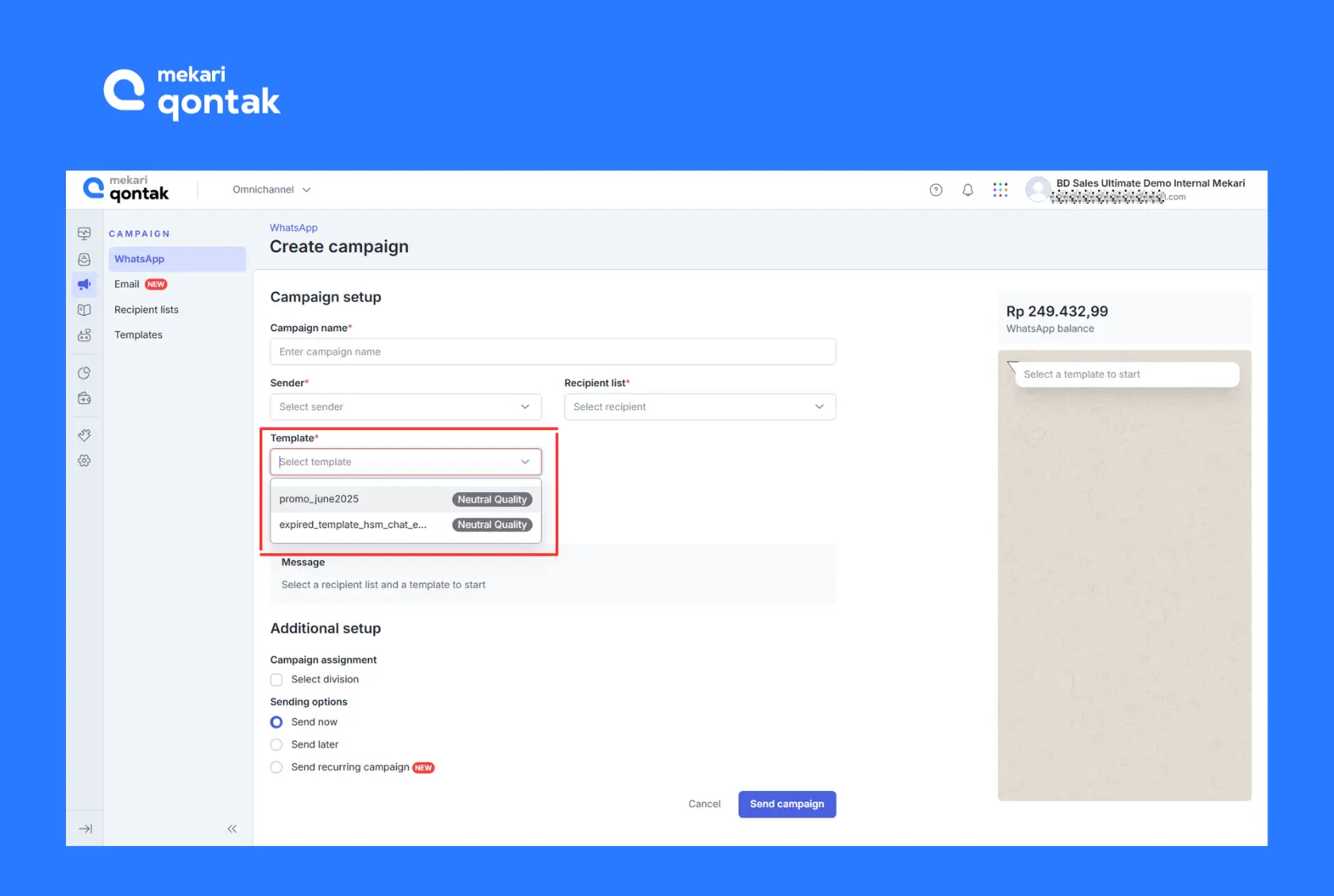
- After that, click the “Template” drop-down menu on the “Campaign setup” page to select an existing message template.
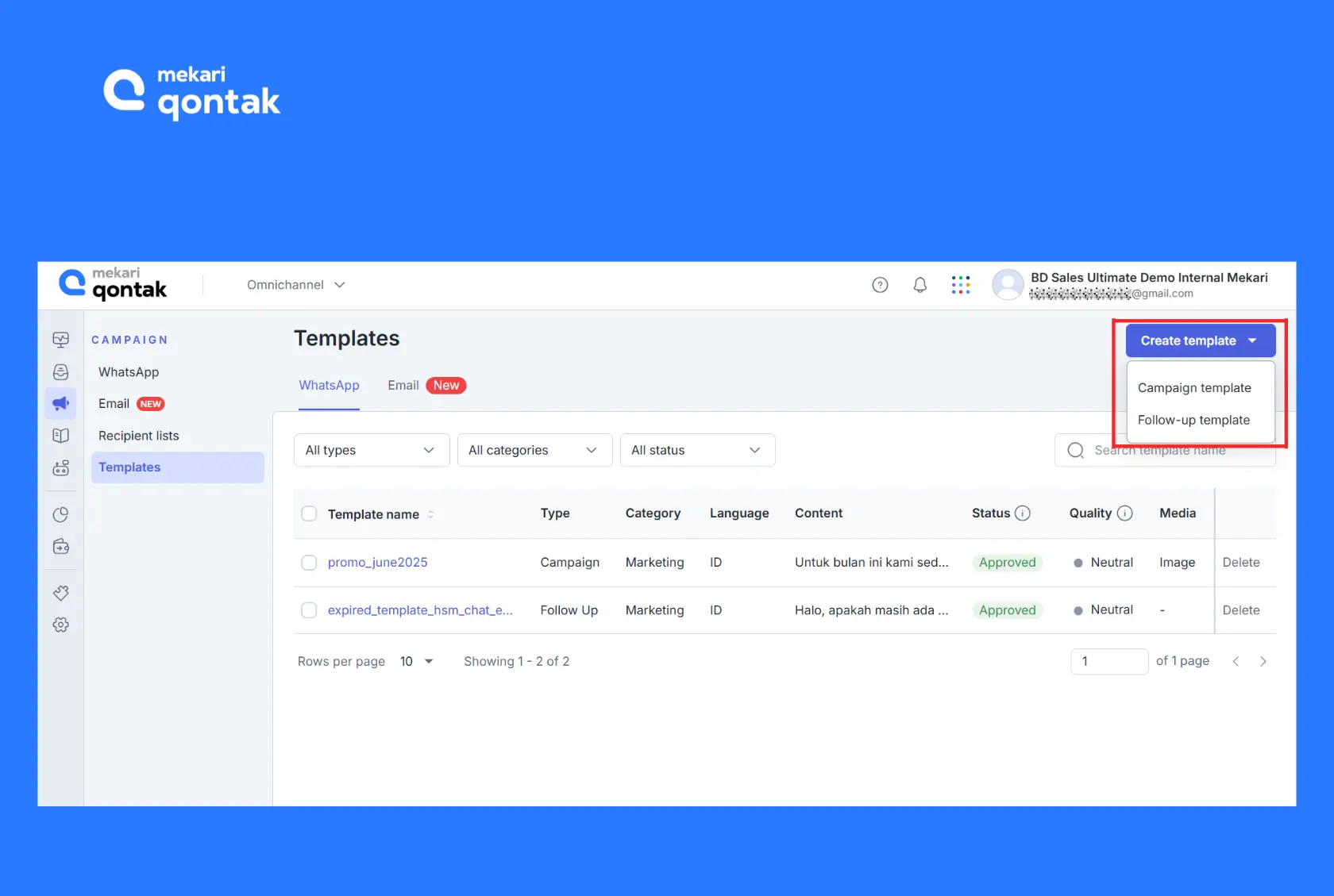
- If you want to create a new template, click the “Templates” feature on the left menu of the page.
- Next, click “Create template” and select the “Campaign template”.
Each message template must go through a review process by Meta before it can be used/sent. Later, only approved templates are allowed to be sent to customers.
5. Create Message Personalization (Optional)
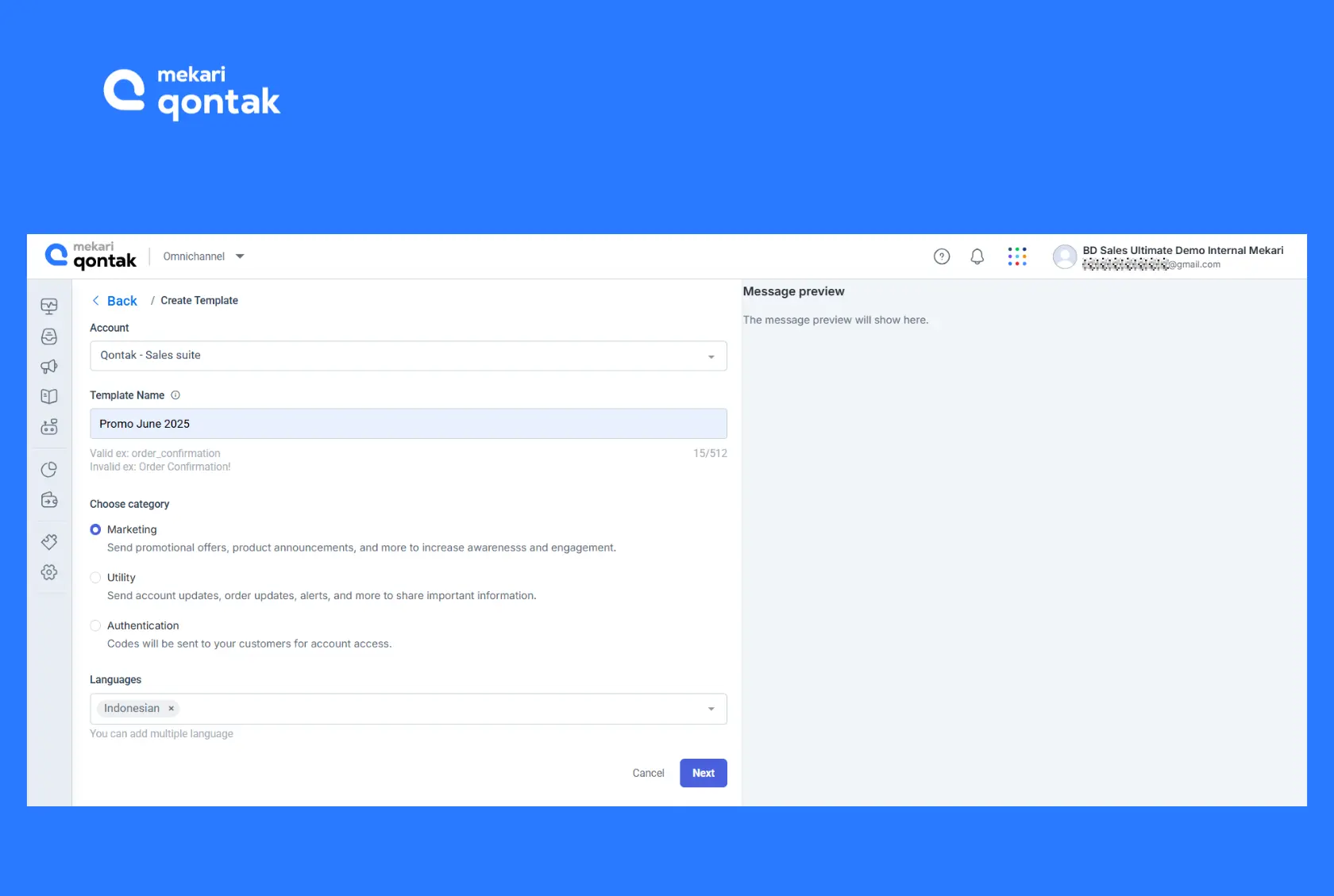
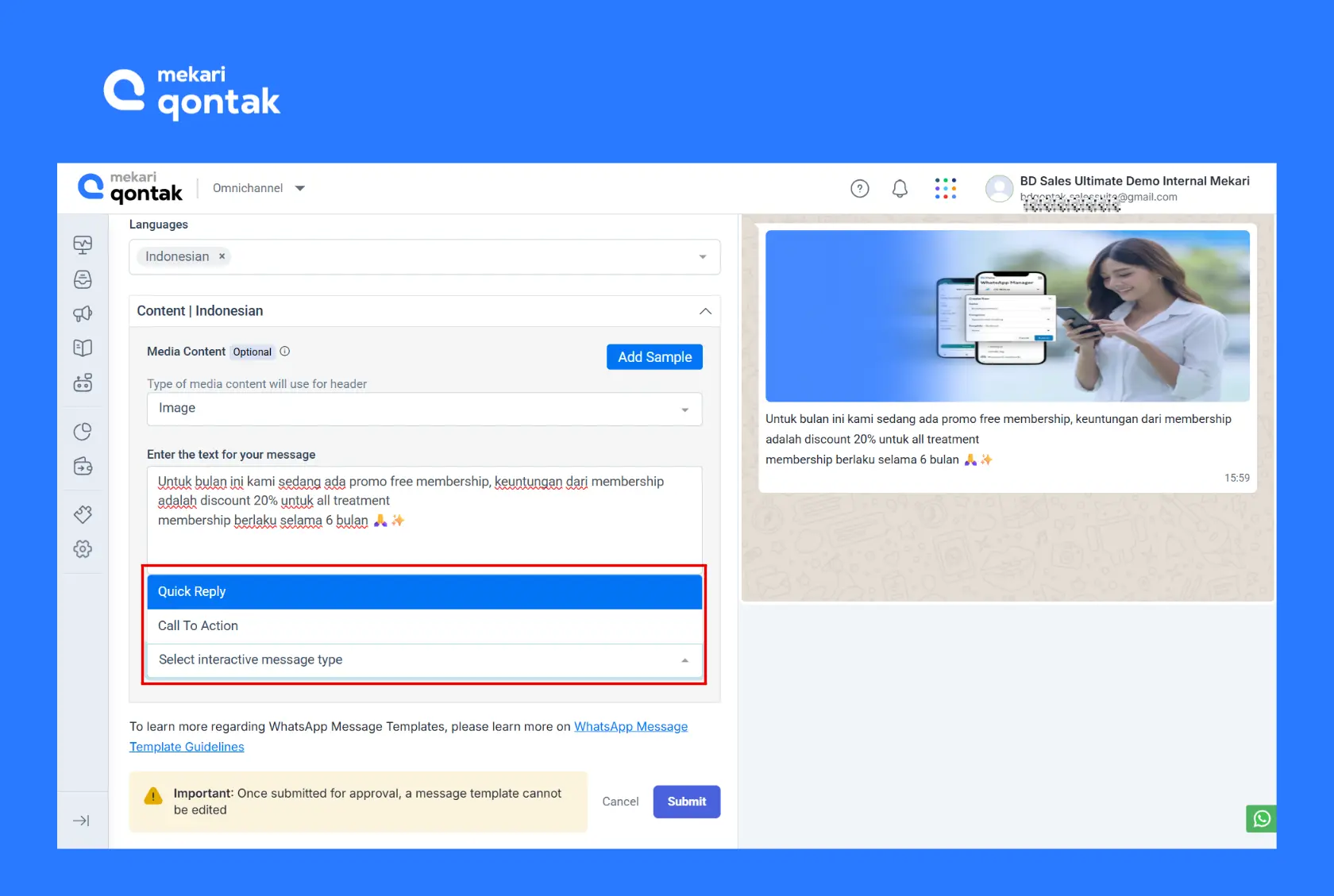
- Fill in the required information, such as account, template name, campaign message category, and language. Then, click “Next” to continue.
- The template name is written without spaces and all lowercase with a maximum of 512 characters. A valid example: order_confirmation.
- Meanwhile, for campaign categories, you can choose 3 types of categories:
- Marketing: Sending promotional offers, new product announcements, and other messages aimed at increasing brand awareness and engagement.
- Utility: Messages containing account updates, purchase updates, alert messages, and other types of messages aimed at announcing important information.
- Authentication: Contains codes sent to customers for account access.
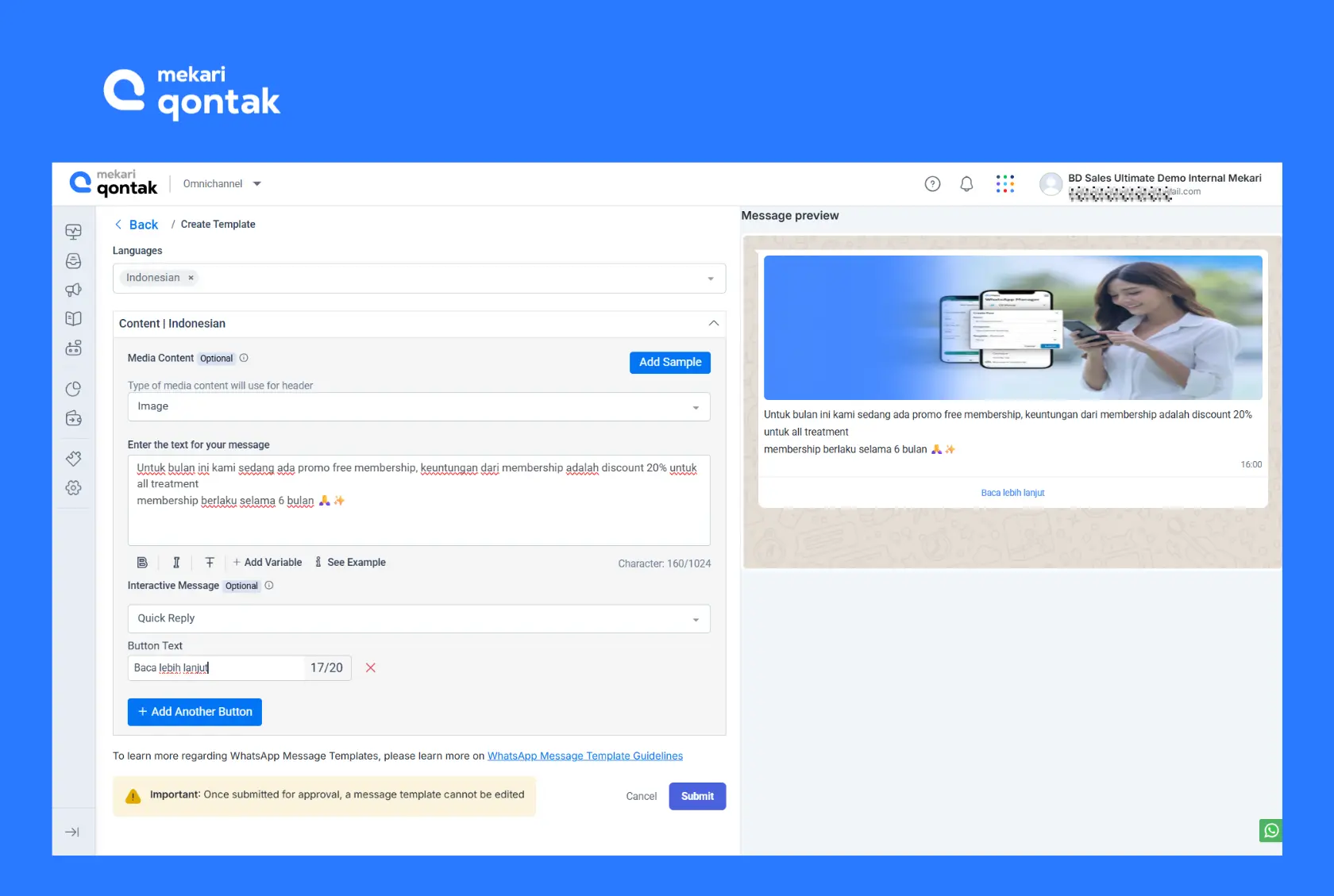
- On the next page, choose the type of content to be used to make the conversation more contextual: images, videos, and PDF files.
- Next, add personalization elements to make the message more relevant, for example: “Hello [Name], we have a special offer for you!”.
- After that, you can choose two call to action options, namely “Quick Reply” or “Call To Action”. Then, click “Submit”.
- Next, you can select the template you just created on the “Campaign setup” page. In addition, you can also review the preview message on the right side of the page.
- After selecting the template, the system will check the status of the selected template as: Status Connected, Rating quality High, and Template quality High.
Below is information about file size and type requirements that can be uploaded when creating templates.
Maximum file upload size:
- Maximum WhatsApp message size: 16 MB
Allowed media file Maximum file upload size:
- formats for header:
- Images: JPG, JPEG, or PNG
- Documents: PDF
- Videos: MP4
Maximum number of characters:
- Template name: 512 characters
- Message text: 1024 characters
- CTA button text (Quick Reply): 20 characters
6. Upload or Select Contact List
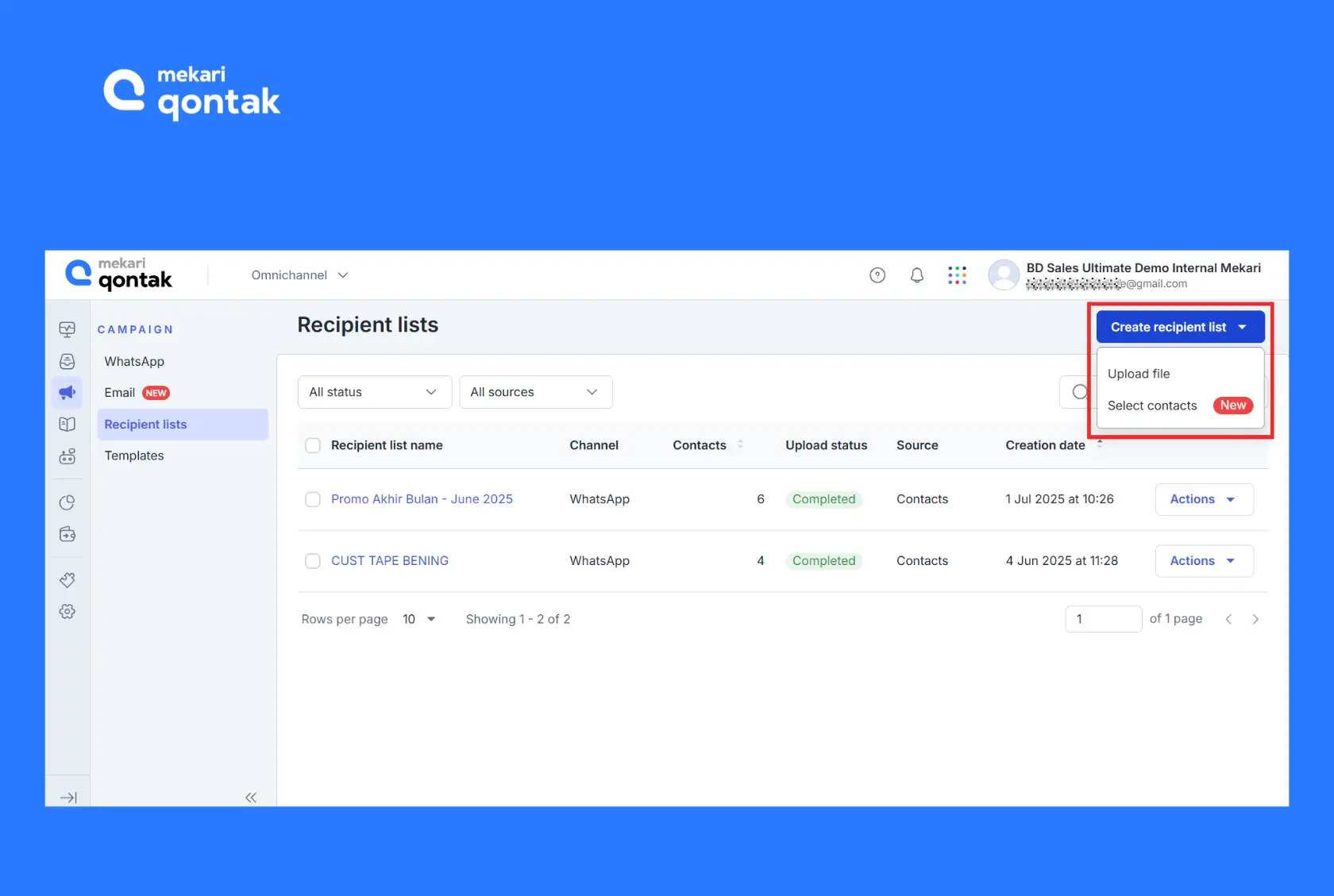
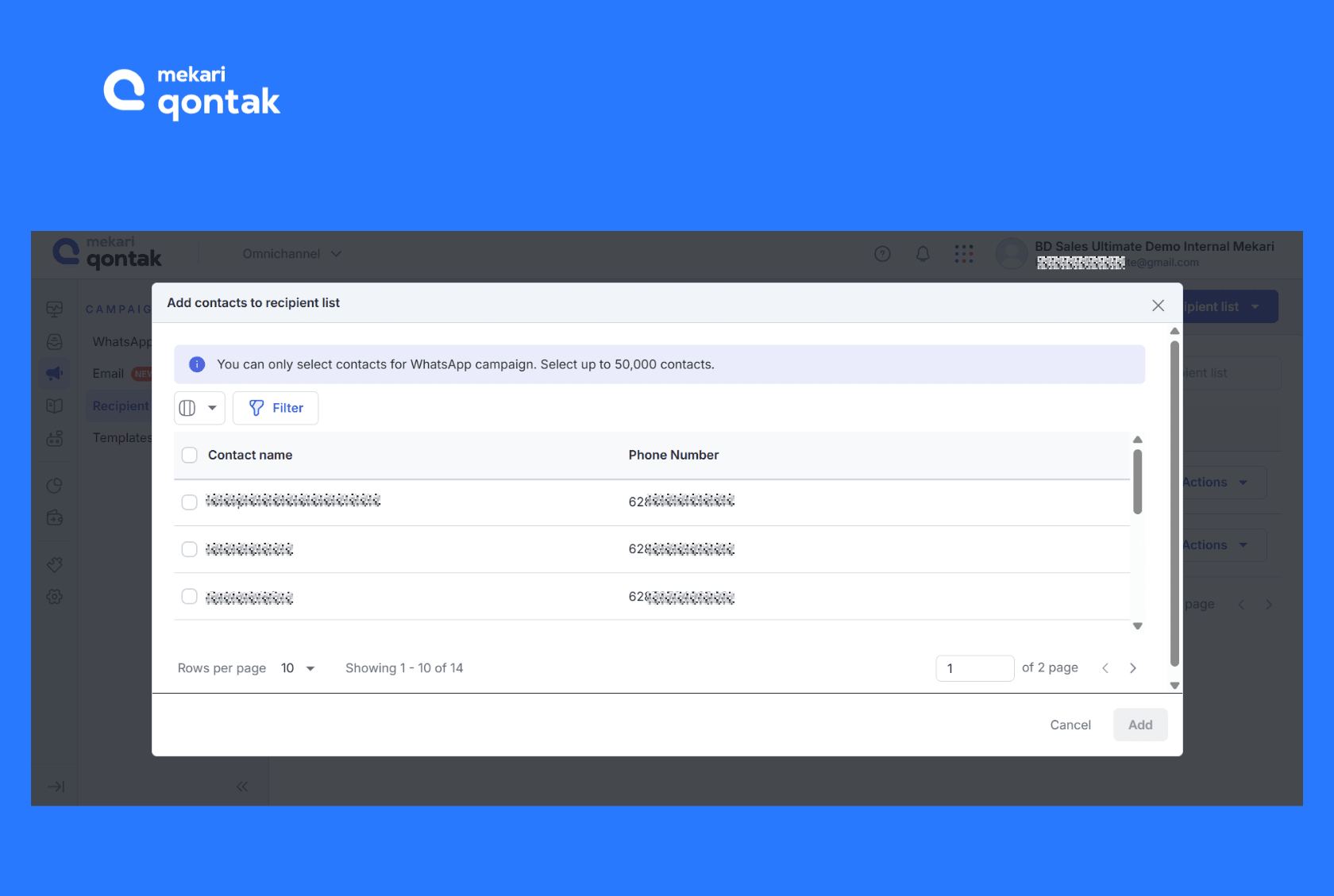
- The next step is selecting the contact list of message recipients.
- If you do not yet have a ready-to-use contact list, please create a new contact list first by accessing the “Recipient lists” feature.
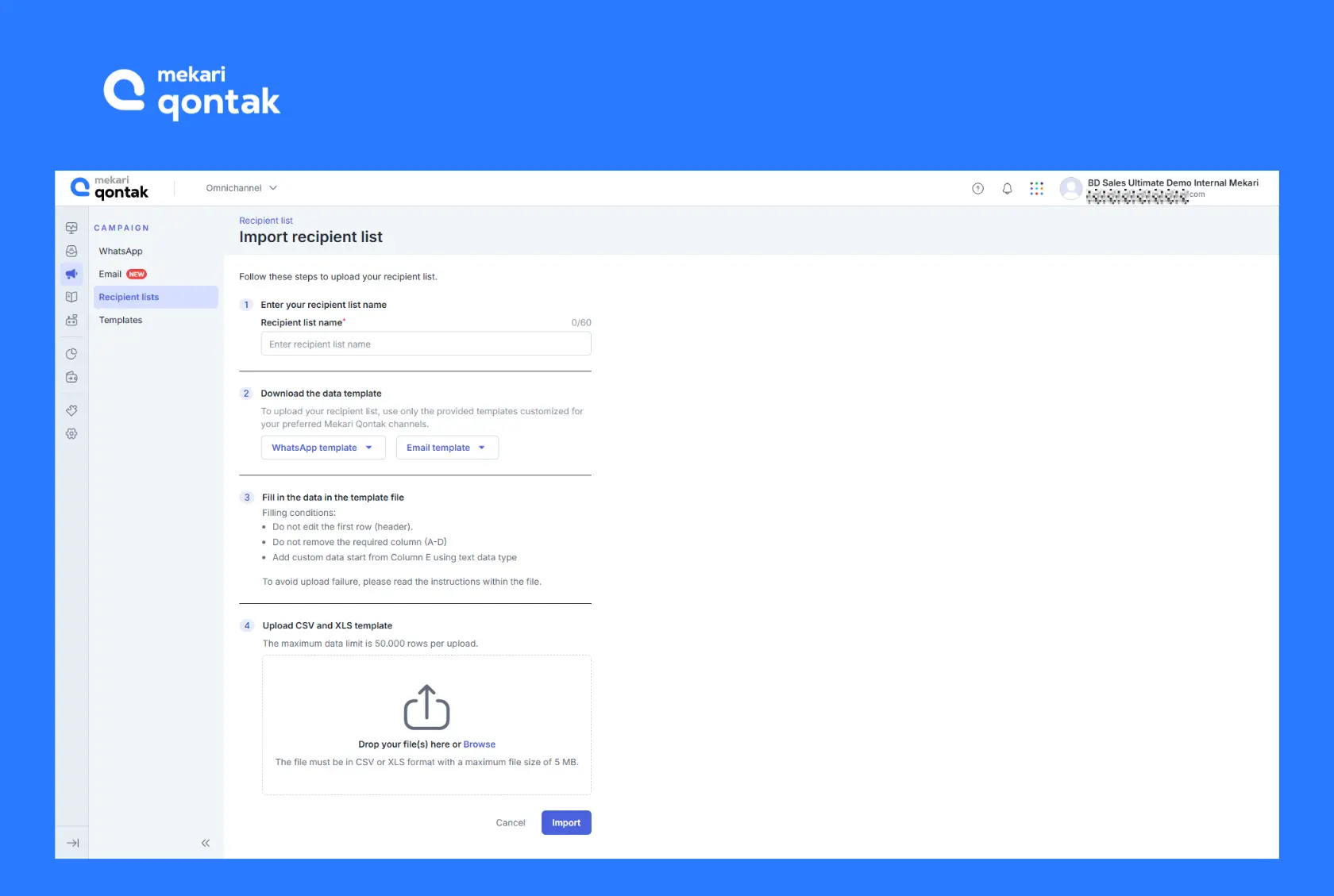
- After that, click “Upload File” to upload a new contact file directly. Below is the document upload format.
- Document format: CSV or Excel
- Size: 5MB
- Data limit: Maximum 50,000 rows per upload
- If you already have a saved contact list, click “Select contacts” to choose the existing contact list.
7. Complete Agent Settings Responsible for Sending Campaign
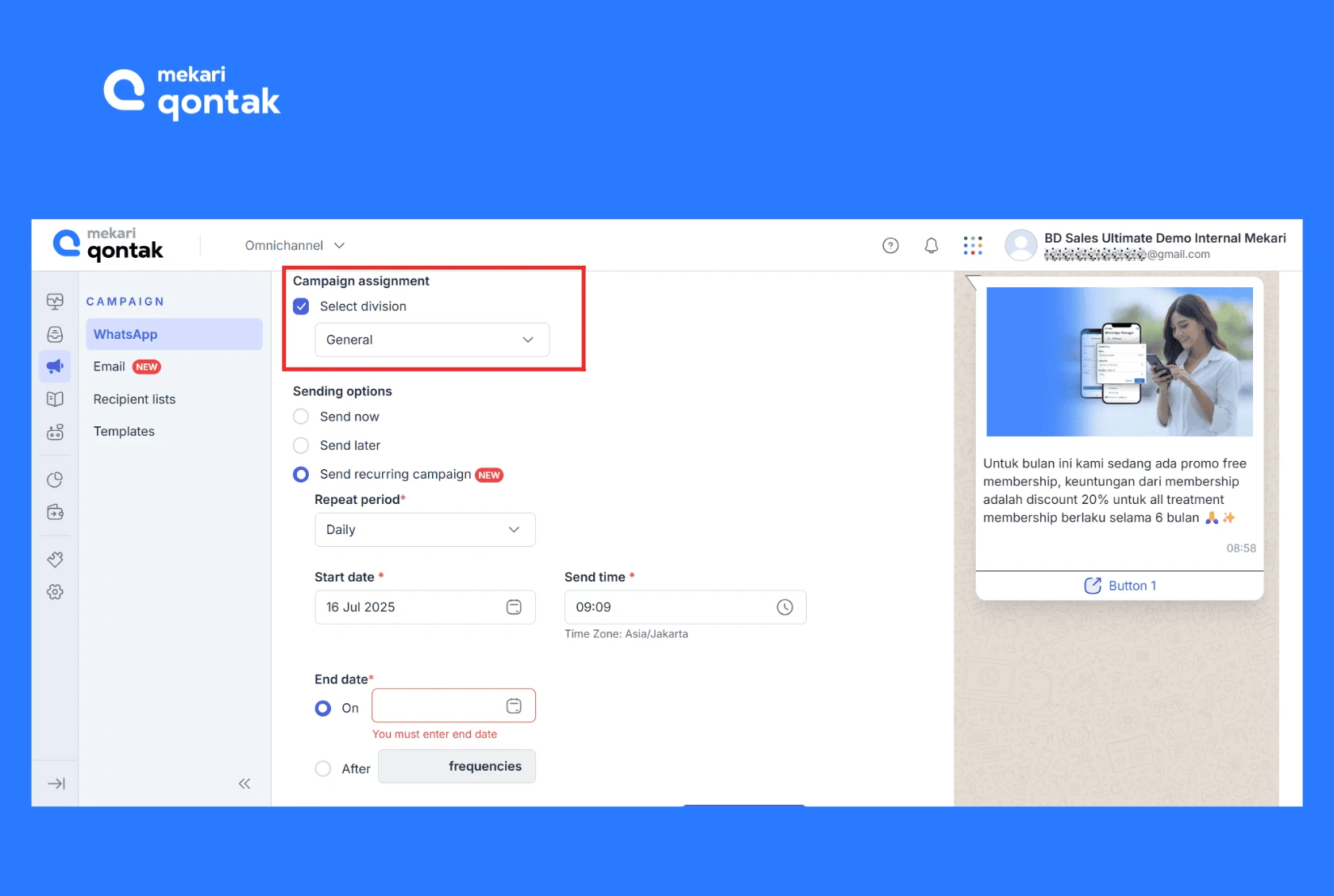
- The next stage is setting “additional setup” on the Campaign setup page.
- Check the “Select division” column to determine the agent who will be responsible for sending this campaign.
8. Schedule or Send Messages Now
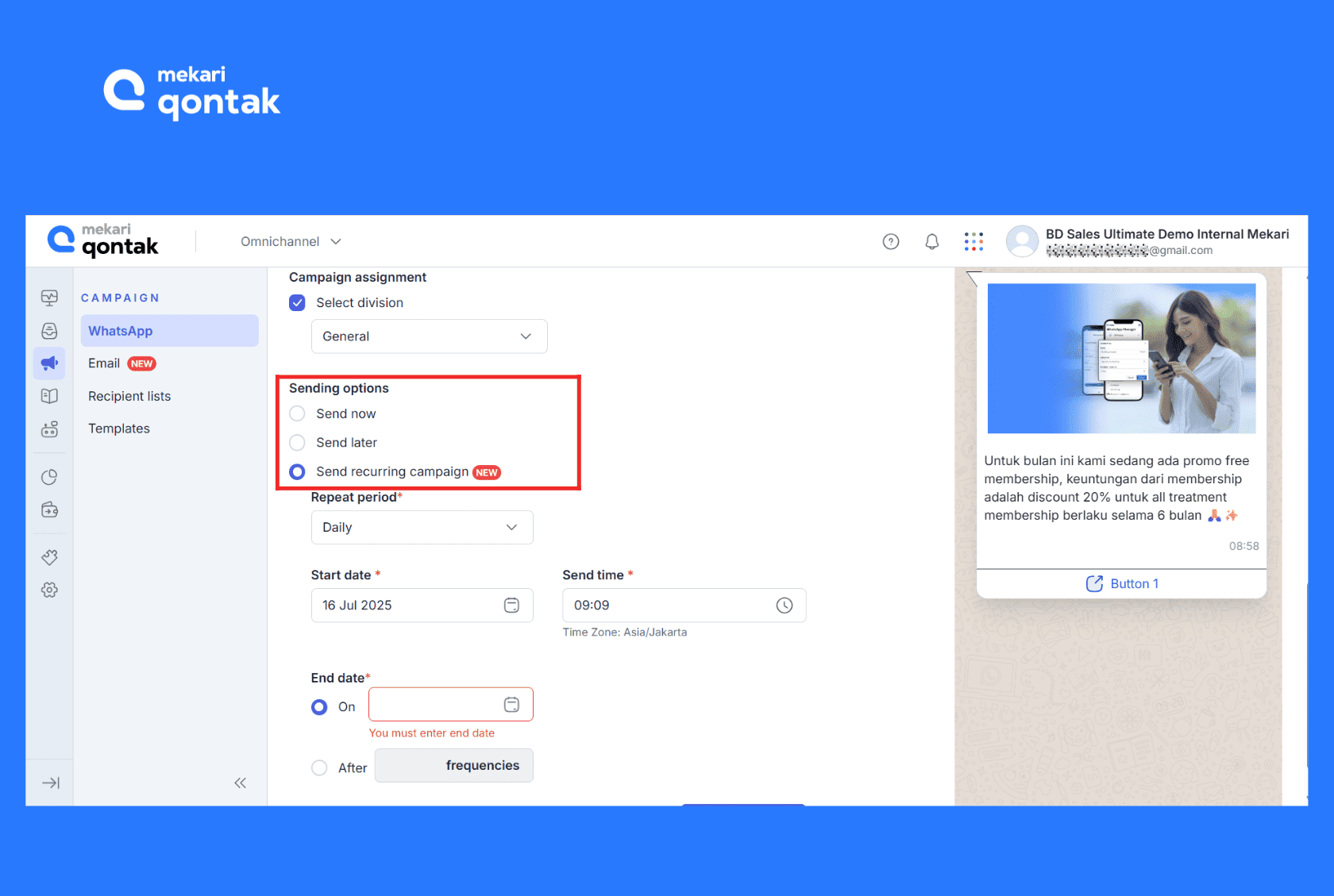
- Next, determine the campaign sending time in the Sending option section. You can choose to send now (Send now), send later (Send later), or send periodically (Recurring campaign).
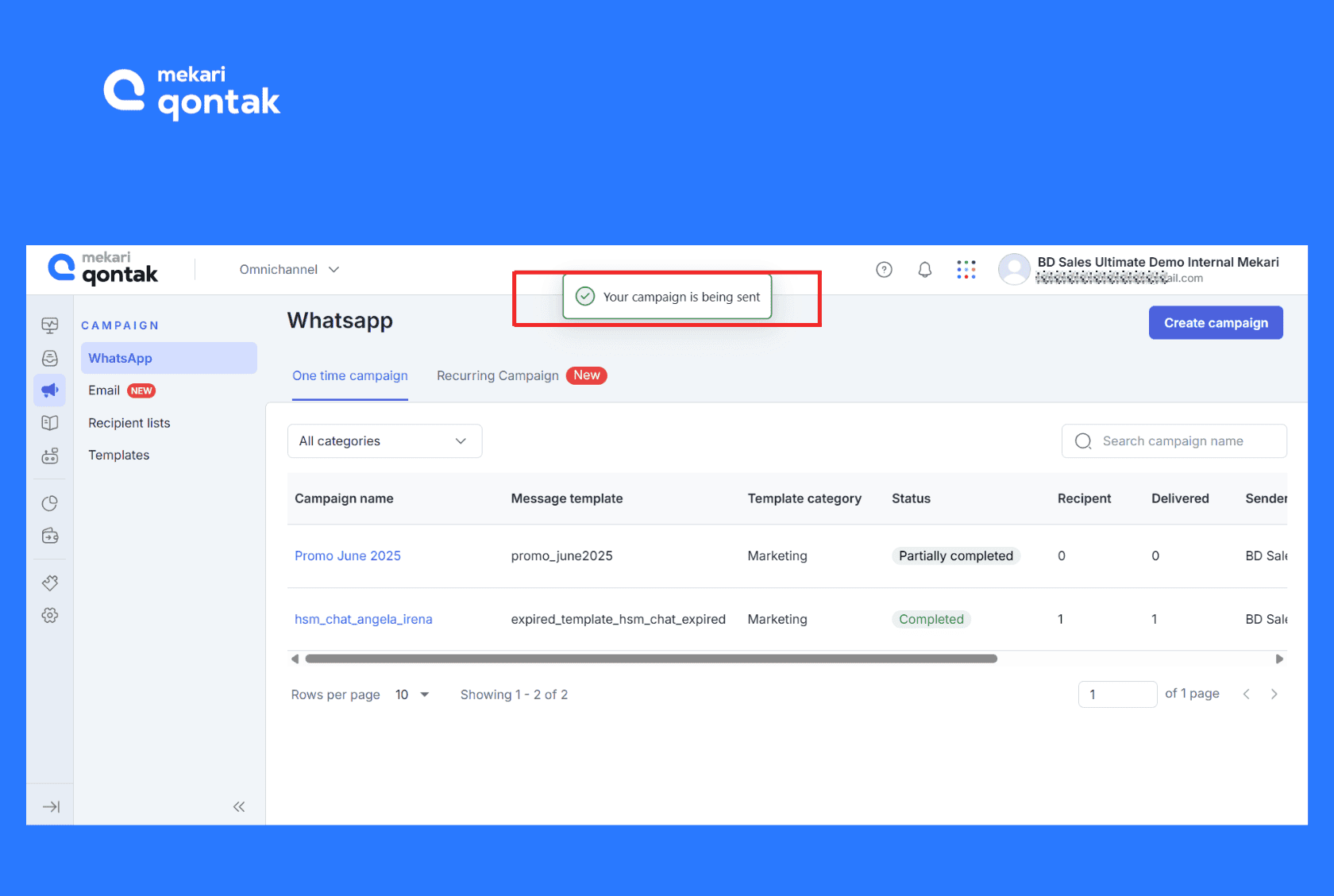
- If all data has been filled in, click “Send campaign”.
- A pop-up notification will appear if the data you submitted is correct.
- Your message has been successfully sent to customers
Tips for Sending WhatsApp Blast Safely to Avoid Being Blocked
To ensure WhatsApp Blast delivery runs safely without the risk of blocking (anti banned), here are important tips you can apply:
1. Use Official and Trusted WhatsApp Blast Services
Make sure you use WA blast services based on the official API from a trusted WhatsApp BSP like Mekari Qontak.
This service is designed so that businesses comply with all WhatsApp policies, making it safer and more reliable.
2. Obtain Customer Consent
The next tip is to ensure that the business has obtained explicit permission (opt-in) from customers. This means customers agree to receive messages, whether through registration forms, websites, or previous interactions with the business.
Avoid using random numbers or contacts that are not relevant to your business because this can increase the risk of messages being reported as spam.
Ensure that the database used comes from opt-in sources in accordance with official WhatsApp policies.
3. Manage Sending Volume and Frequency with a Tier System
A smart message delivery strategy is key to keeping customers comfortable and accounts safe. Instead of sending all messages at once, divide your sending into several stages to avoid spam.
In the WhatsApp Business API, sending volume settings are influenced by a tiering system that limits the number of unique contacts you can reach within 24 hours. There are four levels, namely as follows:
- Tier 1: Maximum send messages to 1,000 unique contacts per 24 hours.
- Tier 2: Maximum send messages to 10,000 unique contacts per 24 hours.
- Tier 3: Maximum send messages to 100,000 unique contacts per 24 hours.
- Tier 4: Unlimited unique contacts per 24 hours.
4. Create Engaging and Relevant Messages
Make sure the message content matches customer needs and interests. You must create content that is clear, informative, and useful, such as special offers and product announcements.
Try not to engage in overly aggressive promotions. Messages that are too dominated by promotions can be considered disturbing or even spam by customers
5. Use Verified Numbers
To maintain customer trust and ensure you always comply with WhatsApp rules, it is very important to use numbers that have been registered and verified as official WhatsApp Business accounts.
Verified accounts, such as those using the WA green tick or currently changed to the WA blue tick, will demonstrate professionalism and the legitimacy of your business.
This will provide assurance that customers are communicating with your business as a legitimate entity.
6. Monitor Responses and Avoid Messaging Inactive Numbers
Utilize available tracking features to monitor message performance. This allows businesses to know exactly who has received and read the messages sent.
It is also important not to continuously send messages to numbers that are inactive or do not provide a response. This will waste resources and potentially increase the risk of being flagged as a spam account.
7. Provide an Unsubscribe Option
Include an option for customers to stop receiving messages if they are no longer interested. This shows respect for customer privacy and prevents spam reports.
When customers feel they have control, they tend to have a more positive view of your brand.
8. Avoid Content That Violates WhatsApp Policies
You should not send suspicious links, false information, or content that violates WhatsApp policies. Make sure your messages are professional and aligned with business ethics.
This step ensures your WhatsApp Blast delivery runs safely, effectively, and remains compliant with WhatsApp policies.
In addition to keeping accounts active, this step also increases customer trust and experience.
9. Do Not Purchase Contact Databases to Send Blast Messages
Buying or using contact databases from unclear sources is one of the riskiest practices in sending WhatsApp Blast.
Such contact lists usually contain recipients who have not given permission (opt-in) to receive messages from your business, and may not even know or be interested in the products you offer.
This condition has a high potential to cause your messages to be reported as spam by many users. This becomes a serious warning signal for WhatsApp and the risk of your account being blocked will increase.
10. Monitor Campaign Performance Regularly
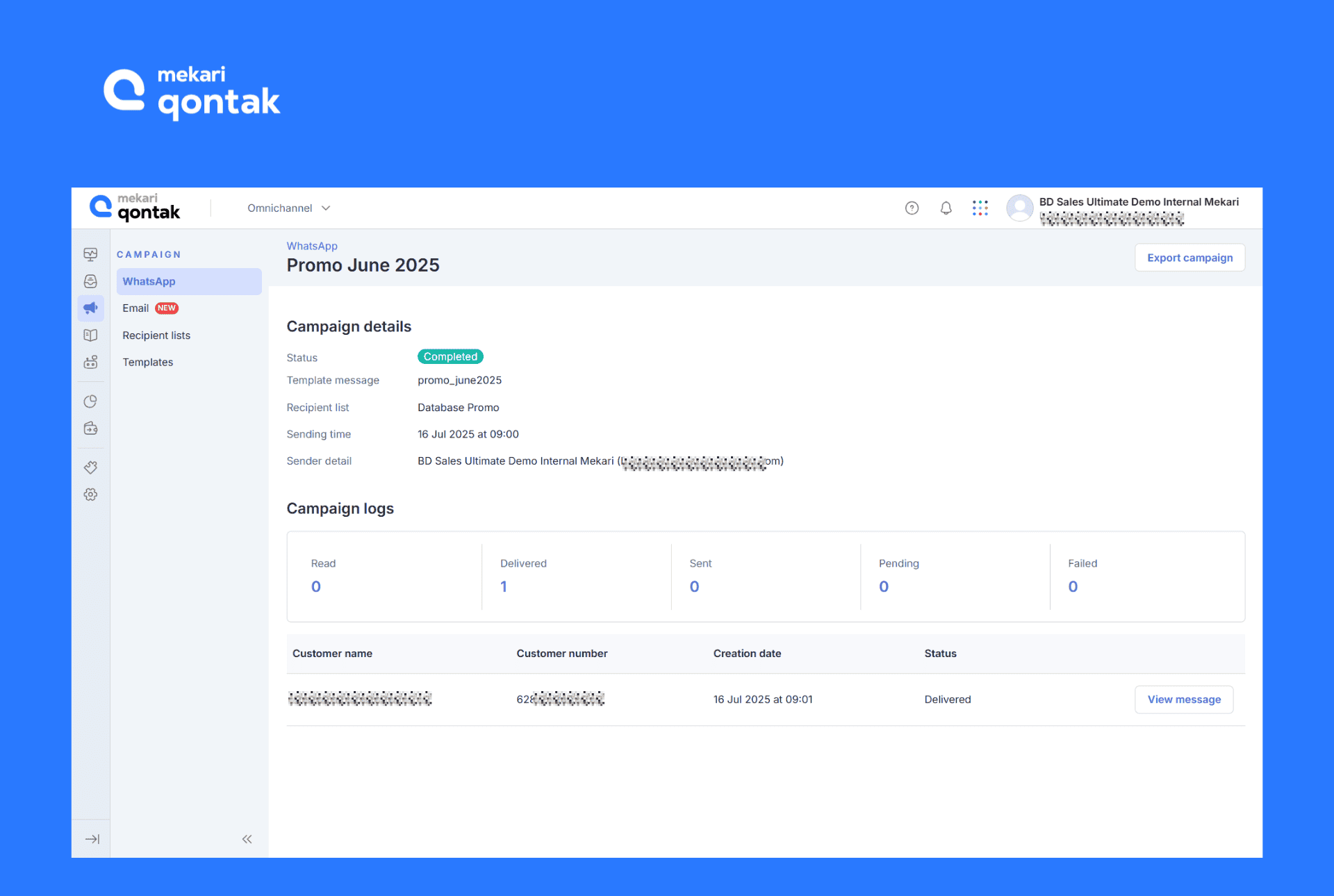
An important step after sending WhatsApp Blast messages is to monitor campaign performance regularly. Through the Campaign Detail page, you can see important data such as customer name, phone number, and message delivery status.
In addition, you can also review campaign results more comprehensively through the analytics report dashboard. Here, campaign performance is displayed in the form of metrics and visualizations such as status and total conversations, as well as agent, broadcast, and bot performance.
Use Official Mekari Qontak WhatsApp Blast and Gain More Customers!
Now, you have a better understanding of the use and how to blast WhatsApp, from logging in to the Mekari Qontak dashboard, adding contact lists, creating campaign messages, to sending messages.
Through WhatsApp blast, businesses can send blast messages to many customers at once, reach more customers, and increase customer interaction with your business.
To transform your sales strategy to the next level, consider using the official WhatsApp Blast application through a trusted Official WhatsApp Business API Partner such as Mekari Qontak.
Mekari Qontak as an official Meta partner provides advanced official WhatsApp Business API features in the Qontak Blast solution. This solution is also integrated with omnichannel software, CRM software, and supported by AI chatbots that can perform automatic follow-ups.
So, what are you waiting for? Consult your business needs with the Mekari Qontak team or try a free WhatsApp Blast demo now!
Frequently Asked Question About How to Send WhatsApp Blast (FAQ)
How to use WhatsApp Blast without WhatsApp Business API?
How to use WhatsApp Blast without WhatsApp Business API?
WhatsApp Blast without the WhatsApp Business API can be done in two ways: using the Broadcast feature in the standard WhatsApp Business app or using unofficial third-party WA Blast services.
The first method, which is the official and safer option, is to use WhatsApp Business by selecting New Broadcast > choosing the recipient contacts > writing and sending the blast message.
The second method is by using unofficial WA Blast services (often referred to as “WA Badak”) from third-party applications. However, this unofficial method is not recommended for businesses because it carries high risks such as account bans, data breaches, and damage to business reputation.
How does sending WhatsApp blast messages work?
How does sending WhatsApp blast messages work?
WhatsApp blast works by sending the same message automatically to multiple contacts via WhatsApp, typically using the WhatsApp Business API.
The process starts with preparing a contact list, creating a message template, and then the system sends the message one by one to each recipient individually (not in a group).
After sending, the sender can monitor delivery status such as sent, read, or replied. This makes it easier to evaluate the effectiveness of message delivery.
How to create personalized WhatsApp blast messages that are not considered spam?
How to create personalized WhatsApp blast messages that are not considered spam?
Here are several ways to create personalized WhatsApp blast messages that avoid being flagged as spam:
- Use approved message templates and personalize them with variables such as the recipient’s name
- Ensure messages are only sent to contacts who have given consent (opt-in)
- Create messages that are valuable and relevant; avoid overly long content
- Include a clear and friendly call to action
How to avoid getting blocked when sending WhatsApp blasts?
How to avoid getting blocked when sending WhatsApp blasts?
There are several ways to avoid account bans and spam flags, including using the official WhatsApp Business API with legal blast features, sending messages in smaller batches with time intervals, and avoiding sending messages to contacts who have not given permission.
As a note, it is important not to use “WA Badak,” as it refers to unofficial WhatsApp Blast services.
Is the term “WA Badak” the same as “WA Blast”?
Is the term “WA Badak” the same as “WA Blast”?
The terms “WA Badak” and “WA Blast” are not the same. “WA Badak” refers to unofficial third-party applications or software that claim to send mass messages with immunity from bans or blocking systems.
Using WA Badak carries a higher risk of being blocked by WhatsApp.
Meanwhile, WA Blast refers to a feature or application used to automatically send bulk messages to many numbers at once, usually through the official WhatsApp Business API or third-party tools.
In simple terms, WA Badak refers to an illegal method, while WA Blast refers to a more official and safer approach.