









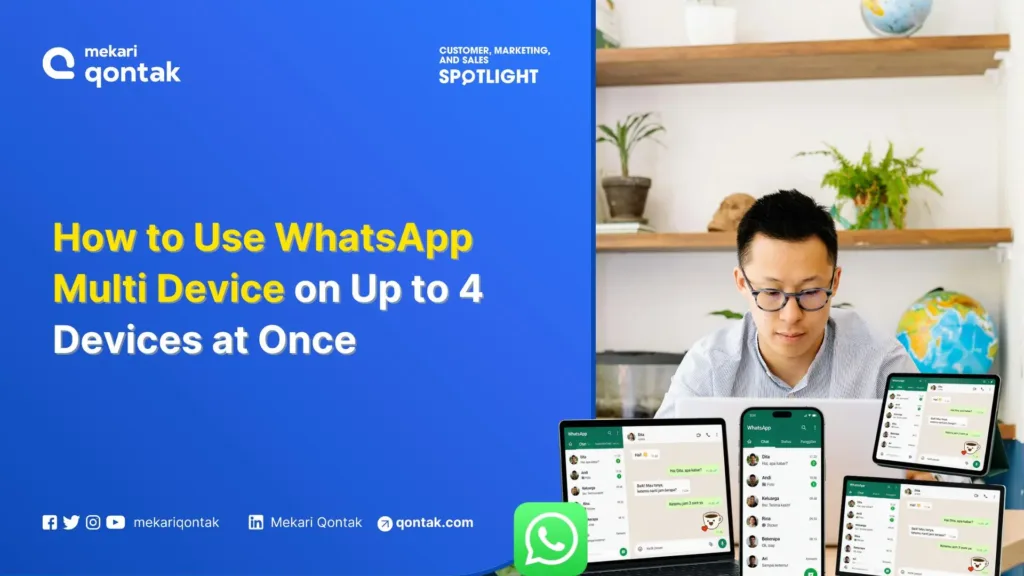
- The WhatsApp Multi Device feature allows users to log in to one account on up to 4 devices (Web, Desktop, or a second phone) at the same time.
- Users can link a WhatsApp account to a second phone, whether Android to Android, iOS to iOS, or across operating systems (Android to iOS or vice versa) using Companion Device mode.
- Unlike WhatsApp Messenger, the WhatsApp Business API solution allows adding unlimited admins or devices to operate a single WA number.
- Using WhatsApp Business API provides business advantages such as a chat panel system for agent management, agent routing systems, and comprehensive reporting and analytics.
The WhatsApp Multi Device feature is certainly already familiar. Through this feature, WhatsApp allows its users to access one WhatsApp Messenger account on four devices at once.
This multi-device feature can still be used even if the primary device is offline or turned off. This capability allows you to send messages to others, even when your phone is off.
So, how do you use WhatsApp Multi Device? In this article, Mekari Qontak Blog will thoroughly explain step-by-step how to use WhatsApp Multi Device on Android and iOS.

What is WhatsApp Multi Device?
WhatsApp Multi Device is a feature of the WhatsApp Messenger application that allows its users to log into four devices at once. Previously, users could only link one WhatsApp account to two different devices (WhatsApp Web/Desktop and a phone).
The advantage of this feature is that users can continue using WhatsApp Web, desktop, and other phones even if the primary phone is off or not online. So, your phone does not need to always be connected to WhatsApp Web to access it.
In addition to being able to access four devices at the same time, WhatsApp has also improved the login speed of this multi-device feature. As a result, loading time for downloading or displaying messages on other devices becomes faster.
How to Use WhatsApp Multi Device on Android Devices
1. Linking WhatsApp on Android to Desktop or Website
Here’s how to link WhatsApp from an Android phone to the WhatsApp application on desktop or WhatsApp Web.
- Open the browser or WhatsApp Desktop application. If in a browser, visit the official site web.whatsapp.com. Meanwhile, if on a PC/laptop, open the installed WhatsApp Desktop application.
- Open WhatsApp on your Android phone.
- Tap the three-dot icon (⋮) in the top right corner, then select Linked devices.
- Press the Link a device button. If prompted, complete security verification using fingerprint, PIN, or Face Unlock.
- Point your phone camera at the computer screen to scan the QR code displayed.
- Wait a few seconds until WhatsApp synchronizes your data.
- Once completed, the entire chat history will automatically appear on the additional device.
2. Linking WhatsApp on Android to a Second Phone (Companion Mode)
Here’s how to link WhatsApp from an Android phone to a second phone using Companion Mode.
- Install the WhatsApp application on the second phone.
- Open the WhatsApp application, then on the initial page tap Agree & Continue.
- Next, skip the phone number verification process and directly click the three-dot icon (⋮) > Link as Companion Device.
- A QR code will appear on the second phone.
- Open WhatsApp on the main Android phone > Linked devices > Link a device, then scan the QR code on the second phone.
- After the synchronization process is complete, both phones can now be used simultaneously to send and receive messages.
- All messages are end-to-end encrypted and remain synchronized even if the primary phone is inactive for up to 14 days.
- For security, check the Linked devices menu regularly and log out unknown devices.
How to Use WhatsApp Multi Device Feature on iOS Devices
For iPhone users, the multi-device feature is also available with nearly similar steps. The difference only lies in the menu layout and authentication process in the iOS system.
1. Linking WhatsApp on iOS to Desktop or Website
Here’s how to link WhatsApp from iOS to desktop/website.
- Open a browser or WhatsApp Desktop on your additional device. Access web.whatsapp.com via a browser, or open the WhatsApp Desktop application.
- Open WhatsApp on your iPhone.
- Open the Settings tab in the bottom right corner of the screen, then select Linked Devices.
- Tap Link a Device, then authenticate using Face ID or your device passcode.
- Point the iPhone camera at the computer screen to scan the QR code.
- After the verification process is complete, WhatsApp will automatically connect and display all your conversations.
2. Linking WhatsApp on iOS to a Second iPhone or iPad
Here are the step-by-step instructions to link WhatsApp on iOS to a second iPhone or iPad using Companion Mode.
- Install WhatsApp on the second device (companion).
- Open the WhatsApp software, then on the initial page tap Agree & Continue.
- If the phone number verification page appears, skip this step and select the Link as Companion Device option.
- After that, a QR code will appear on the second iPhone or iPad screen.
- On the main iPhone, open the WhatsApp application > go to the Settings tab > select Linked Devices > tap Link a Device.
- Use the main iPhone camera to scan the QR code displayed on the second device.
- Wait a few seconds until synchronization is complete. Now you can use the same WhatsApp account on two different iOS devices.
- This feature supports up to four additional devices, including iPhone, iPad, MacBook, or WhatsApp Web.
- If the primary phone is inactive or offline for more than 14 days, WhatsApp may automatically disconnect companion devices for security reasons.
How to Use WhatsApp Multi Device on WhatsApp Business API
Unlike WhatsApp Messenger, using the WhatsApp multiple device feature on WhatsApp API does not limit the number of devices you can use.
This means you can add unlimited admins to operate one WhatsApp account across multiple devices simultaneously. This allows you to respond to customer messages faster.
Here’s how to use WhatsApp multi device on WhatsApp API.
1. Register a Facebook Business Manager Account
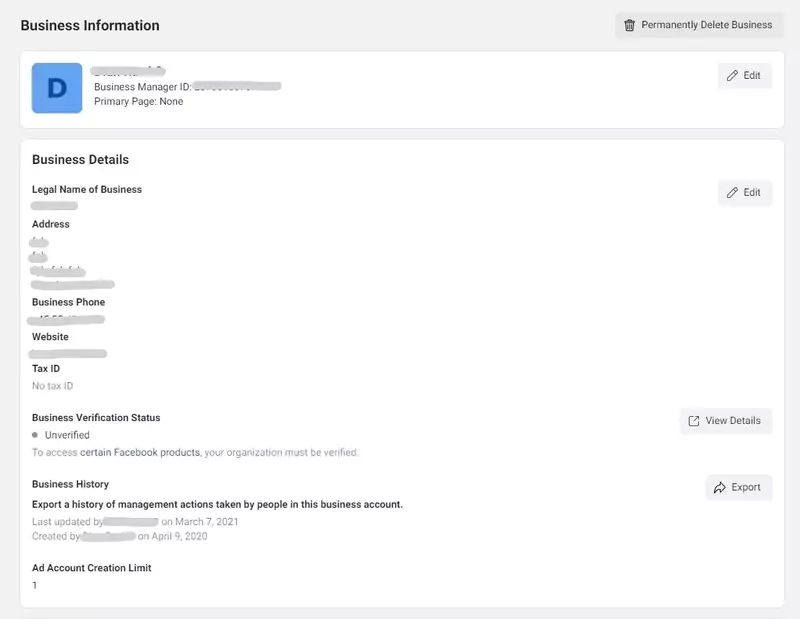
As a business owner, you may already be familiar with FB Ads or IG Ads. You also likely know that a business must have a Facebook Business Manager account to use FB Ads, IG Ads, and WA API.
First, submit your Facebook Business Manager account to Facebook Business Manager. However, this process is quite difficult and time-consuming, and not all submitted accounts will be approved by Facebook.
To make it easier, you can ask for assistance from an official WhatsApp API partner such as Mekari Qontak to simplify the account registration process.
2. Partner with Mekari Qontak Business Solution Provider (BSP)
The second step is to partner with a Business Solution Provider (BSP) in your country as an official WhatsApp Business Partner. One of the best BSPs in Indonesia is Mekari Qontak.
Next, the Mekari Qontak team will help you submit an application for a licensed WhatsApp API that can be integrated with any technology.
3. Choose a WhatsApp Business API Number
In the third step, you simply provide the WhatsApp number you want to use for WhatsApp API. The submitted number can be an existing or a new one.
Next, you need to complete your profile with important information, such as operating hours, address, website, and other essential business details. This profile can serve as your business branding.
4. Log in to Mekari Qontak Chat Panel
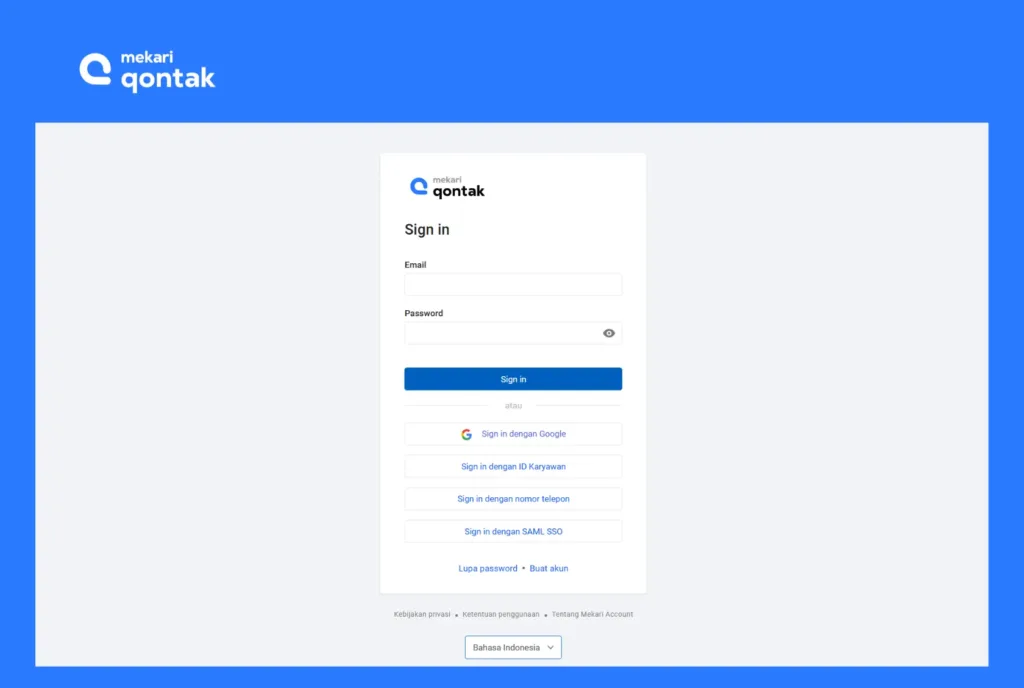
At this stage, you can use WhatsApp Multi Device. You simply log in to the Mekari Qontak chat panel using credentials in the form of a username and password provided by Mekari Qontak.
There are three types of credentials in Mekari Qontak Omnichannel: Supervisor, Agent, and Admin. Both supervisors and agents can log in simultaneously on multiple devices (website and mobile). However, the menu display after logging in will differ.
Agents can only reply to incoming messages. Meanwhile, supervisors can access various omnichannel features, and admins can view all messages and access various omnichannel features.
5. Set Chat Assignment
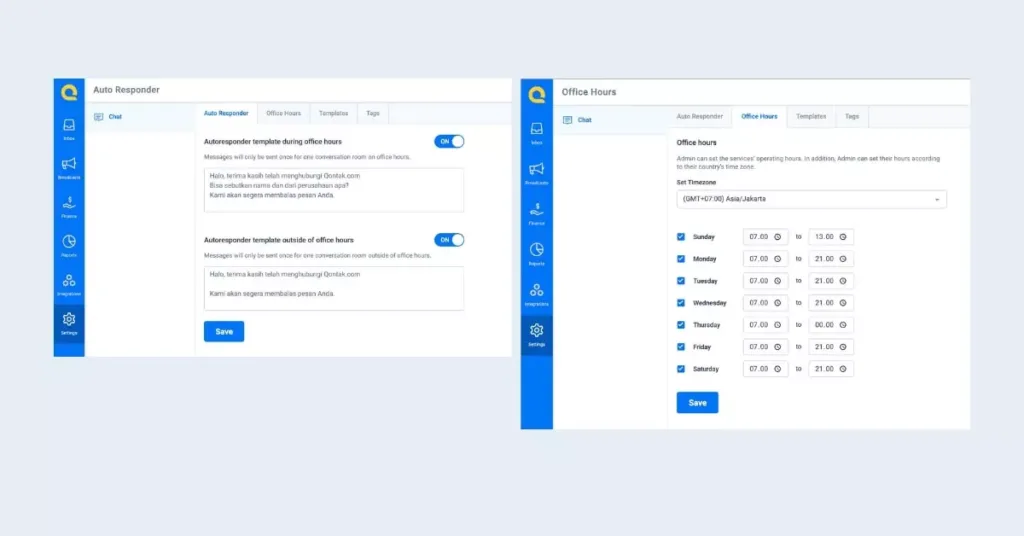
Fifth, managers can set chat assignments (message recipients) found in the supervisor login. Meanwhile, agent login can change online status from the top of the panel. This status will be used to run Auto Agent Allocation or Custom Agent Allocation functions.
Additionally, supervisors can build a more effective and efficient workflow system by setting message templates and automated replies. So, agents do not need to rewrite the same answers.
6. Manage Message Retrieval and Sending
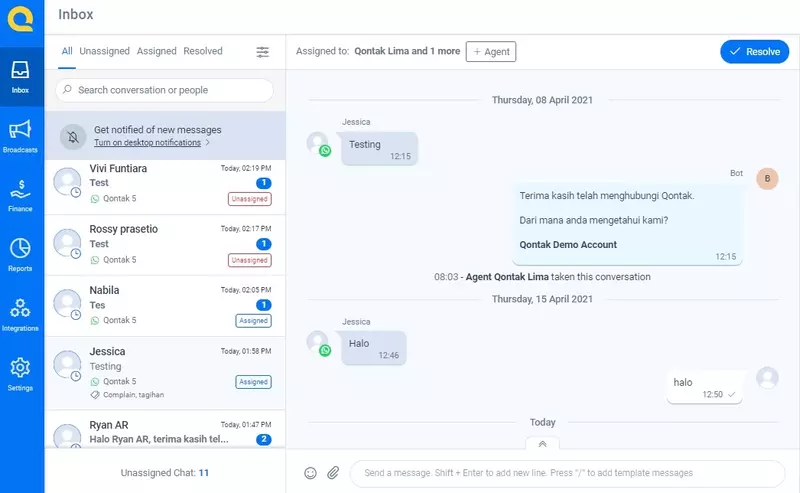
All incoming messages will appear in the inbox menu in the first row of the menu page. Each user will receive notifications after activating the Allow Notification feature.
Supervisors can choose to reply to messages, interrupt messages, and select which chat room to read or respond to. Supervisors can also add or remove agents from the same chat room.
Unlike supervisors, agents can only send messages to fellow agents. Agents can close a conversation session by pressing the Resolve button.
Messages that have been closed cannot be edited or forwarded again even if the session time has not ended (expired) and will be automatically stored in the Resolved menu.
Benefits of WhatsApp Multi Device Feature from WA Business API for Business
WhatsApp multiple device from WhatsApp API allows you to add unlimited admins simultaneously. Here are some benefits of the WhatsApp multiple device feature for business.
1. One WhatsApp Number for Every Needs
Business owners only need one WhatsApp number for various needs, from customer service ticketing, payment reminders and confirmations, OTP, tracking purchases and deliveries, to other notifications.
2. Easier Monitoring of Incoming Messages
By using only one WhatsApp number, businesses can more easily monitor incoming messages. This is because all incoming messages are automatically stored.
Thus, you do not need to back up data or synchronize conversation history between devices.
3. Comprehensive Reports and Analysis
WhatsApp Business multiple devices are equipped with analytical reports from all activities. For example, total conversations and average agent response time.
This will certainly make it easier for you to evaluate customer service KPIs, each agent’s performance, and develop strategies to improve customer service.
4. Advanced Agent Routing System
Users can customize agent routing and conversations to meet business management needs, either automatically or customized as needed.
With WhatsApp multi device, customers can be directed directly to the appropriate department for handling.
5. Ease of Integration with Other Channels
WhatsApp multi device can be connected with other popular applications, such as Telegram, Line, or Facebook Messenger. This advanced integration is often also referred to as WhatsApp Omnichannel.
This step can create seamless interactions between businesses and customers.
Try WhatsApp Multi Device from Mekari Qontak Now!
Thus, the WhatsApp multi device feature in WhatsApp API does not limit the number of users at the same time. This means you can access one WA account with unlimited users across multiple devices simultaneously.
However, to use WhatsApp Business API, you need to collaborate with an official BSP in Indonesia, such as Mekari Qontak.
Through Mekari Qontak, your business will gain access to using one WA account across multiple devices according to the selected solution.
In addition, Mekari Qontak WhatsApp Business API provides an end-to-end solution consisting of WhatsApp API and other omnichannel solutions connected to an advanced CRM system. This solution can be customized to business needs to increase sales and customer service.
So, what are you waiting for? Immediately consult your needs with Mekari team or get a free demo of Mekari Qontak now!
Frequently Asked Question About How to Use WhatsApp Multi Device (FAQ)
When will a companion device be automatically disconnected (logged out)?
When will a companion device be automatically disconnected (logged out)?
A companion device or second device will automatically log out if there is no usage activity for more than 14 days.
What is the maximum number of devices that can be linked using WhatsApp Multi Device?
What is the maximum number of devices that can be linked using WhatsApp Multi Device?
For WhatsApp Messenger (standard application), the maximum number of devices that can be linked is four companion devices (a total of five devices including the primary phone).
Meanwhile, if using WhatsApp Multi Device through WhatsApp Business API, you can use WhatsApp with multiple agents across various devices.
What if more than 4 devices are needed for business?
What if more than 4 devices are needed for business?
For business needs with unlimited admins, you must use WhatsApp Business API. Through a BSP such as Mekari Qontak, there is no limit to the number of users or devices that can access one WA account.