









- WhatsApp Business API addresses the limitations of regular WA broadcasts, allowing messages to be sent to thousands of contacts without saving their numbers.
- WhatsApp Broadcasts messages can be sent in various ways, through Android, iOS, desktop/PC, web, or official business solutions such as Mekari Qontak with no restrictions on the number of recipients.
- Sending an official WhatsApp Broadcast is safer, delivers higher delivery rates, provides business verification, and reduces the risk of being blocked compared to regular broadcasts.
- Mekari Qontak’s WhatsApp Broadcast feature is highly effective for reaching customers and improving business communication.
WhatsApp Broadcast is a feature that helps businesses send messages to many contacts at once, without the need to save numbers or create a group.
The WhatsApp Broadcast feature is especially useful for sharing information with a large number of people simultaneously. This approach is particularly beneficial for businesses looking to distribute promotions or announcements.
In this article, Mekari Qontak Blog will walk you through the easy ways to send broadcast messages on WhatsApp without saving numbers to many contacts and customers all at once.

Requirements for Sending Broadcast Messages via WhatsApp
Before using the WhatsApp broadcast feature, keep the following requirements in mind:
- Recipients must have your number saved in order to receive the broadcast message.
- The maximum number of recipients per broadcast list is 256 contacts in regular WhatsApp.
- WhatsApp offers more flexibility, but it still has limitations compared to the WhatsApp API.
How to Send a WhatsApp Broadcast via Regular WhatsApp for Business
Here are several ways to send a WhatsApp broadcast using the regular WhatsApp app:
1. How to Send a WhatsApp Broadcast via Android
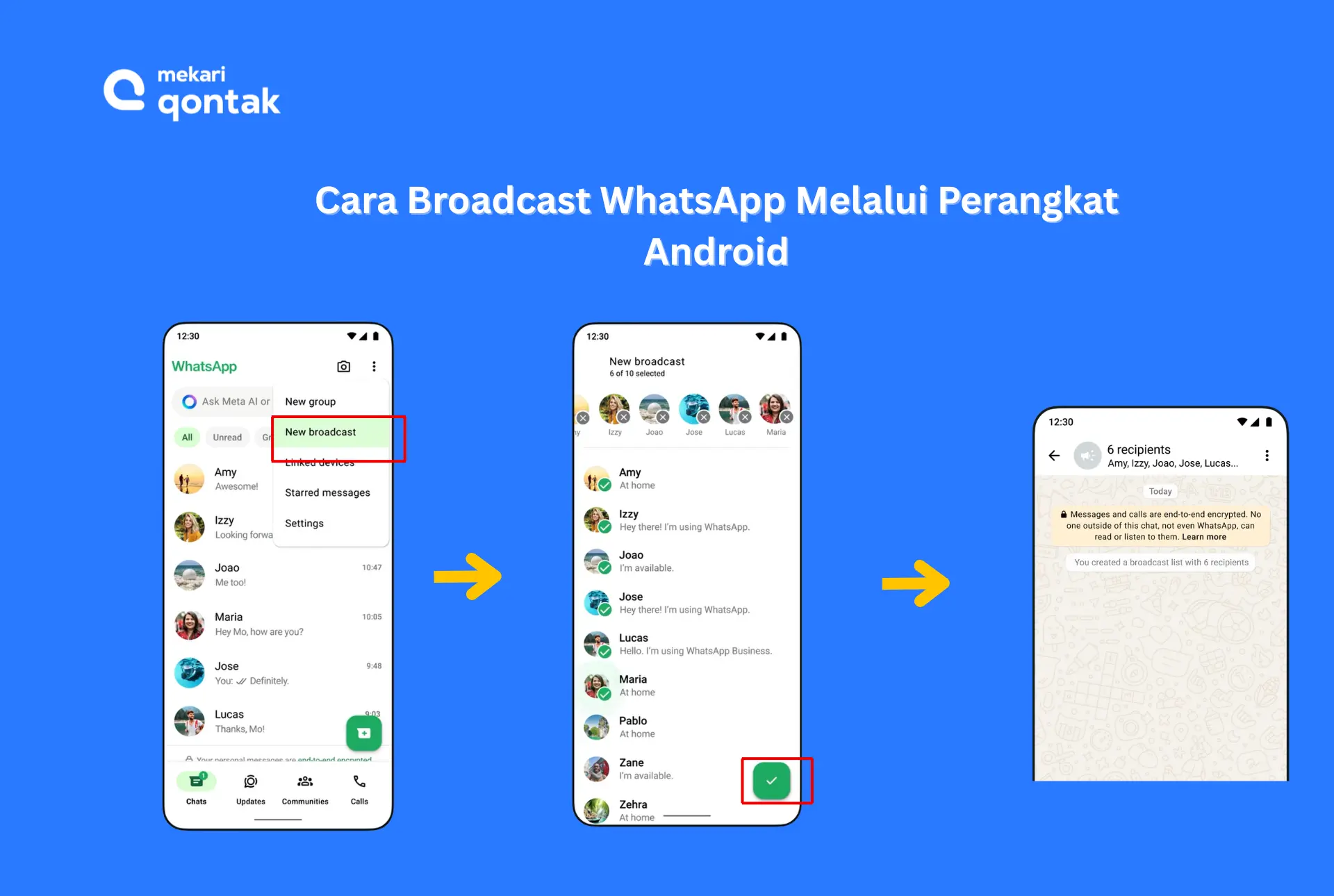
WhatsApp allows Android users to send broadcast messages easily using the built-in feature. Here are the simple steps to send a WA broadcast via Android:
- Open the WhatsApp app on your phone, then tap Chats.
- Tap the three-dot icon in the top right corner to open the menu, then select New Broadcast.
- Choose the contacts you want to include in the broadcast. Once the recipient list is selected, tap the Checkmark button at the bottom of the screen to proceed.
- You will be taken to the broadcast chat room. Type the message you want to send, or copy and paste a message you’ve already prepared.
- You can also include relevant supporting content, such as links, images, videos, or a location to make your message more engaging, persuasive, and informative.
- Tap the Send button, and the message will be delivered to all selected contacts.
Recipients will receive your broadcast message as a personal message from you in their “Chats” tab. Any replies they send will also appear as personal messages and will not be shared with other contacts on the broadcast list.
2. How to Send a WhatsApp Broadcast via iPhone (iOS)
For iPhone (iOS) users, WhatsApp also provides a broadcast feature that works slightly differently from Android. Here are the simple steps to send a WA broadcast via iOS:
- Open WhatsApp on your iPhone, then tap Settings.
- Tap Broadcast Lists, then select New List.
- Next, select the contacts you want to add to the broadcast recipient list, then tap Create.
- In the broadcast chat room, type the message you want to send to your customers.
- Next, add supporting media such as images, videos, locations, and relevant links. This will make your message more credible and less likely to be flagged as spam.
- Tap Send.
- The message will be delivered to all selected contacts.
3. How to Send a WhatsApp Broadcast via Web
By default, WhatsApp Web does not offer a direct broadcast feature like the mobile app (Android & iOS). However, there are a few alternative methods you can use to send a WhatsApp broadcast via the web.
a. Using a Browser Extension
The first method for sending a broadcast message via WhatsApp Web is to use an add-on extension that can be downloaded for free through your browser, such as the WA Sender app.
Here are the steps:
- Go to WhatsApp Web https://web.whatsapp.com/.
- A QR code will appear on the first page. Open the WhatsApp app on your mobile device, tap the three-dot icon, then tap Linked Devices to scan the QR code.
- On the Chrome Web Store, search for and select the broadcast extension you want to use, then click Download.
- Switch to your WhatsApp Web account.
- Click the extension icon at the top of your browser.
- A pop-up will appear showing the extension’s interface where you can enter the recipient numbers.
- Enter the list of recipient phone numbers for the broadcast message.
- Then, type the broadcast message you want to send.
- Click Send. Your broadcast message will be delivered to your contact list.
b. Using a Third-Party Application
Another option is to use a third-party application, such as Mekari Qontak. As a trusted Business Solution Provider (BSP), Mekari Qontak can help you send WA broadcast messages to a much larger contact list than what is possible with the regular WhatsApp app.
However, before sending a WA broadcast, make sure you have a contact database where recipients have already saved your number so they can receive the message.
4. How to Send a WhatsApp Broadcast via Desktop/PC
In addition to using the web, you can also send a WA broadcast via desktop/PC. However, make sure you have already installed the WhatsApp Desktop/PC app and are logged in with your number.
Please note that the regular WhatsApp app on desktop/PC does not support the broadcast feature.
Although WhatsApp Desktop/PC does not have a built-in broadcast feature, you can upgrade the regular WhatsApp app to the WhatsApp Business API to still be able to send broadcasts via desktop/PC.
Here are the simple steps to send a WA broadcast via desktop/PC:
- Choose a trusted Business Solution Provider (BSP), such as Mekari Qontak.
- Next, contact the Mekari Qontak team to register as a WhatsApp Business API user.
- Then, prepare the phone number you will use as your business number.
- Complete the Facebook Business Manager verification. You will need to prepare official documents, such as a Business Trading License (SIUP), Business Registration Number (NIB), or deed of establishment, as well as additional information about your business location and official website.
- The Mekari Qontak team will then assist you in registering your phone number with the WhatsApp Business API.
- The Mekari Qontak team will provide you with your WA Business API account details.
- Once you have received your WhatsApp Business API account details, you can start sending broadcast messages to many numbers.
How to Send an Official WhatsApp Broadcast via Mekari Qontak’s WhatsApp Business API


For businesses looking to reach more customers without any restrictions on the number of recipients, WhatsApp has provided the WhatsApp Business API, such as Mekari Qontak’s WhatsApp Business API.
As an additional note, WhatsApp broadcast messages sent via the WhatsApp Business API are also commonly referred to as a WhatsApp Blast.
As an official BSP, sending a WhatsApp broadcast through Mekari Qontak’s WA Business API is much easier and allows you to send messages to thousands of contacts without manually saving their numbers. Here are the steps:
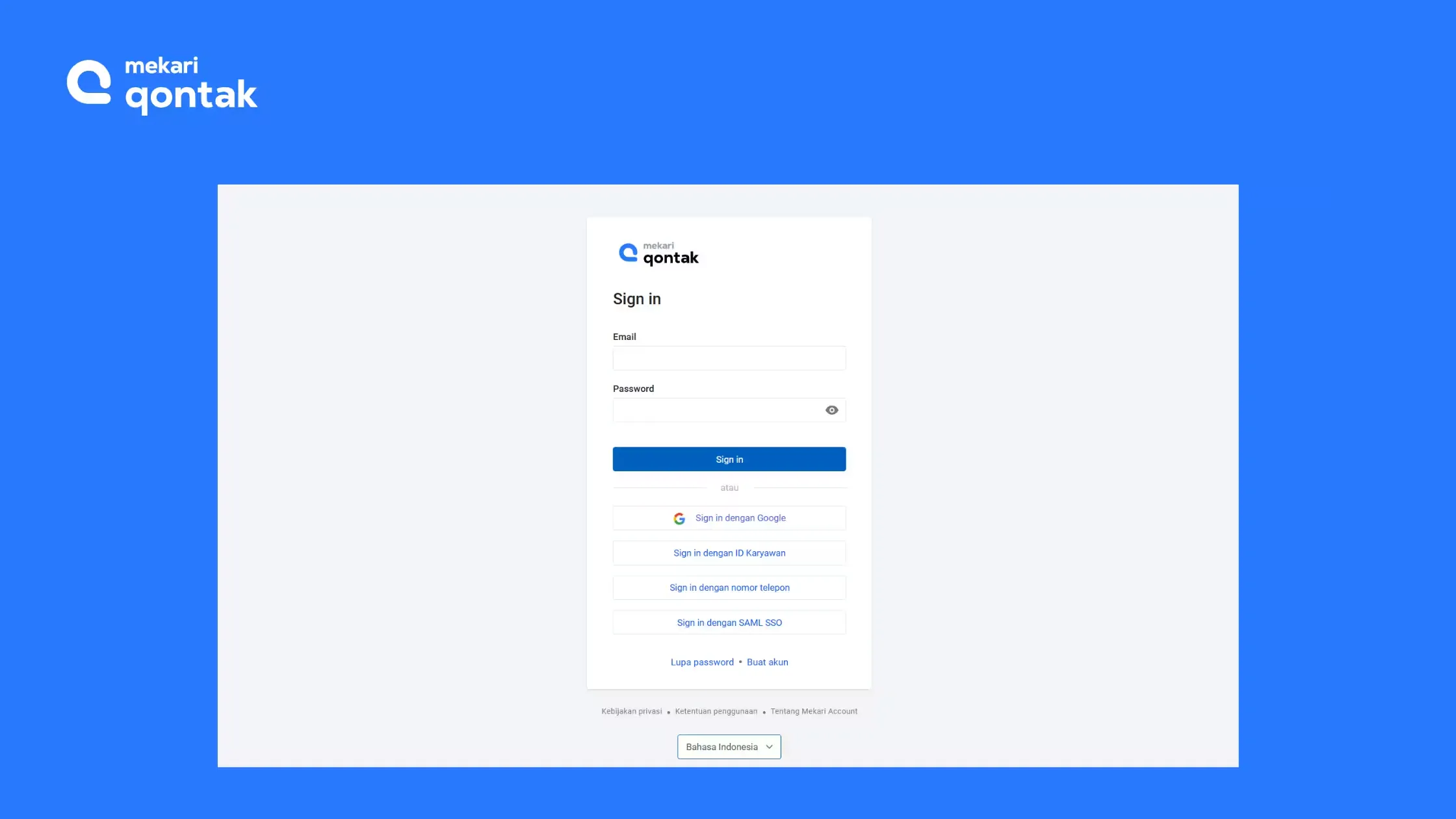
1. Log In to the Mekari Qontak Platform
- The first step is to go to the Mekari Qontak login page.
- Next, log in using the account provided to you by the Mekari Qontak team.
2. Create a WhatsApp Broadcast Campaign
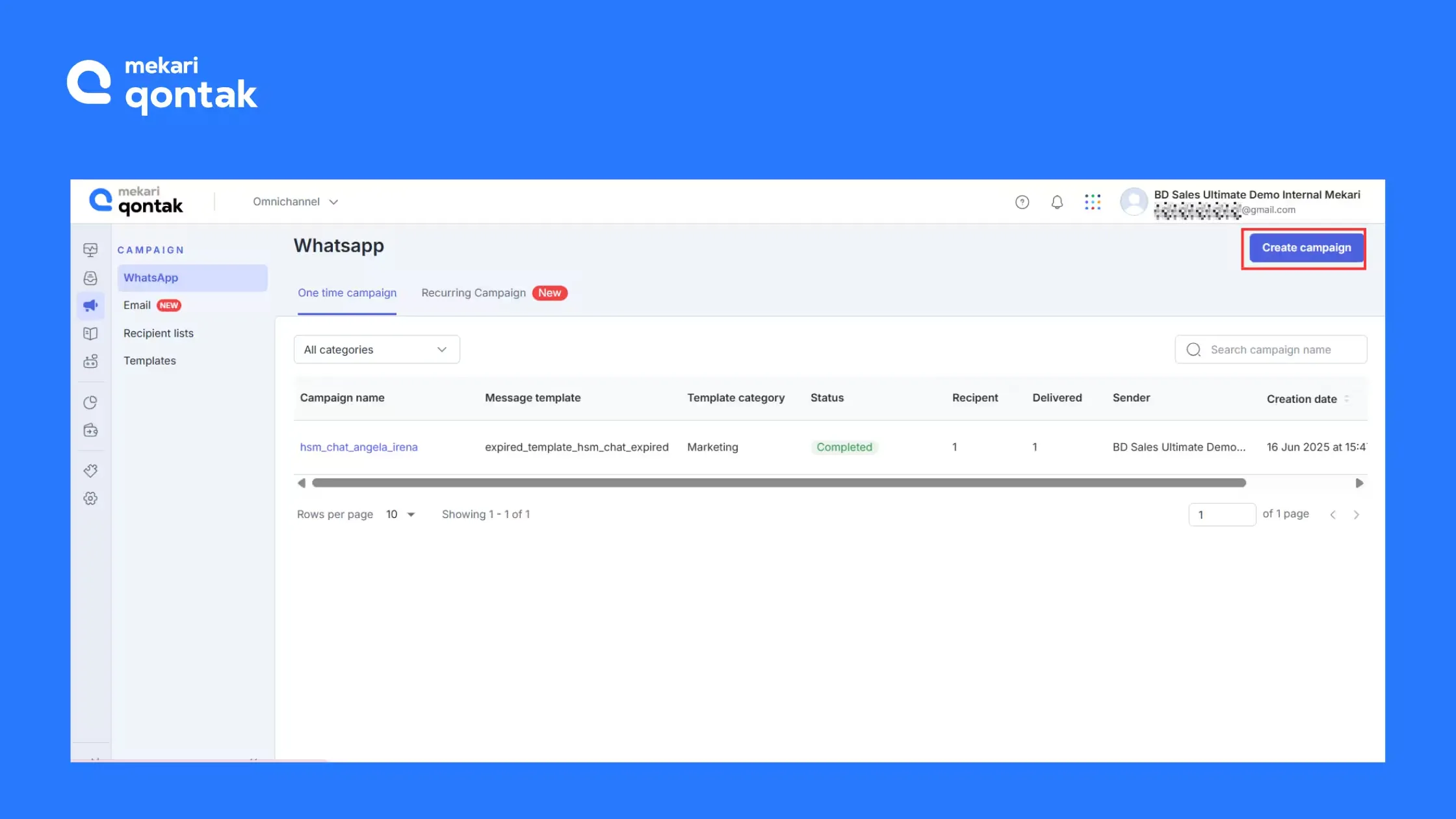
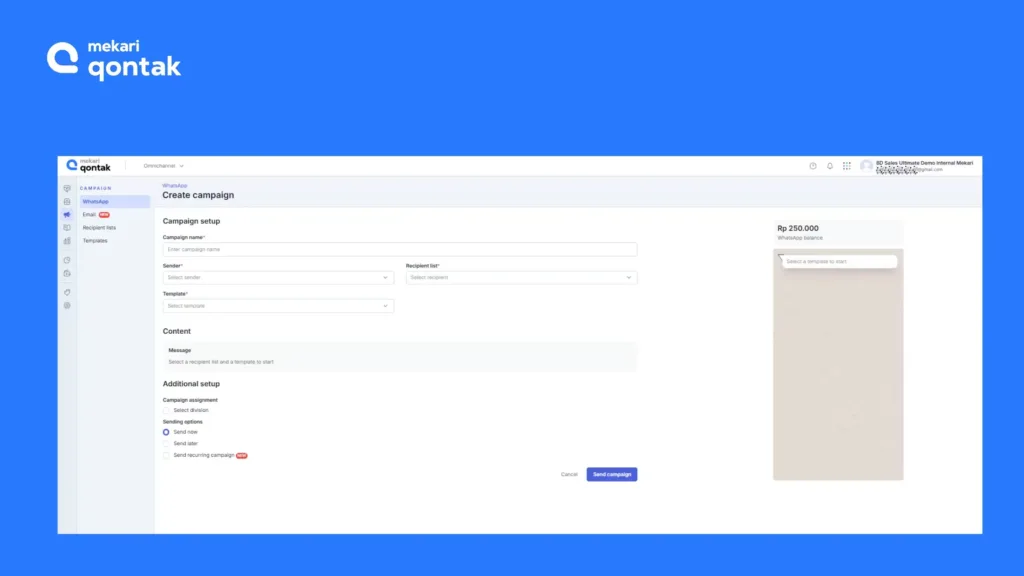
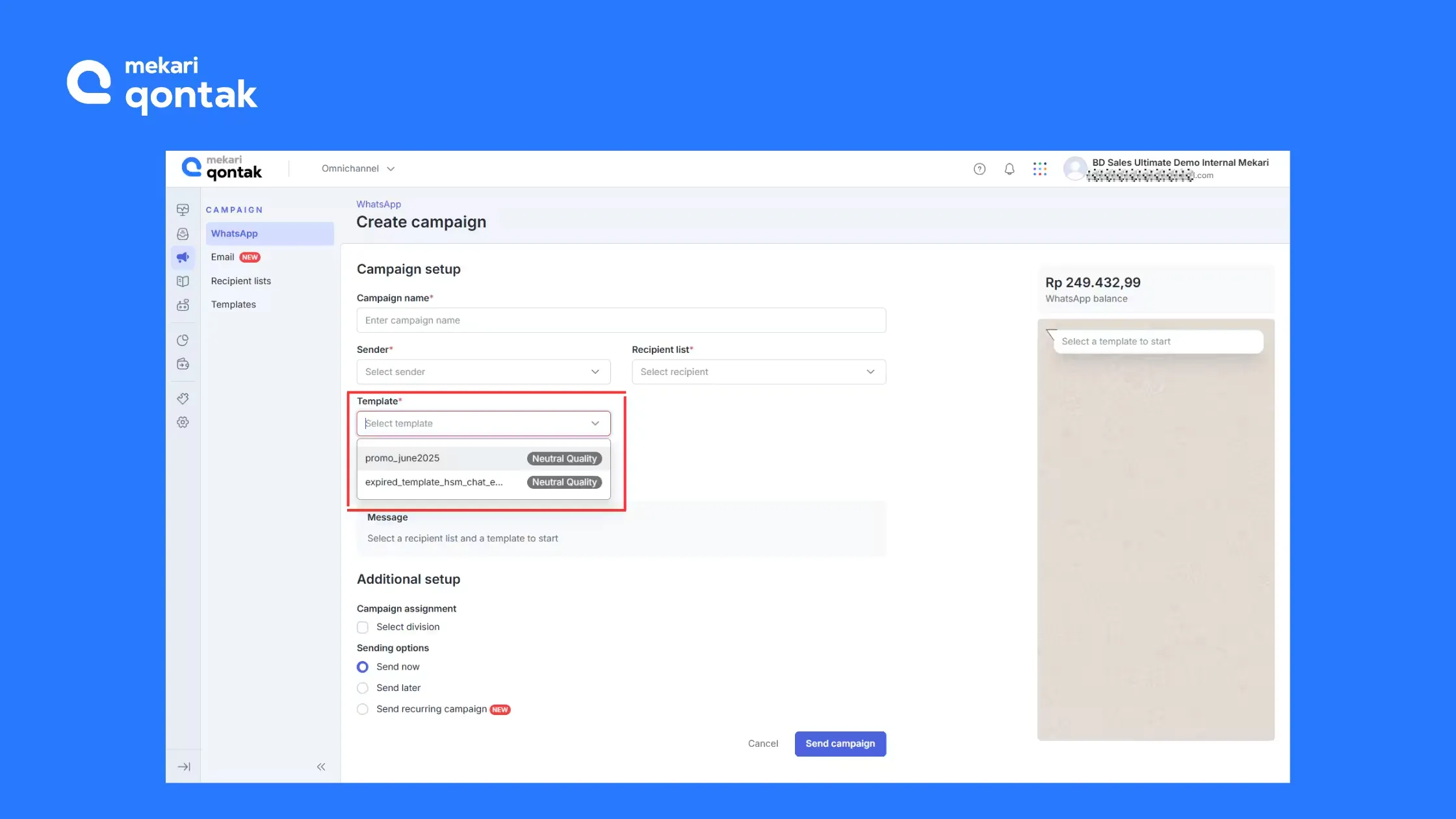
- Access the Campaigns menu, then select Create Campaign to begin sending mass messages.
- You will be directed to the Campaign Setup page.
3. Add the Recipient List
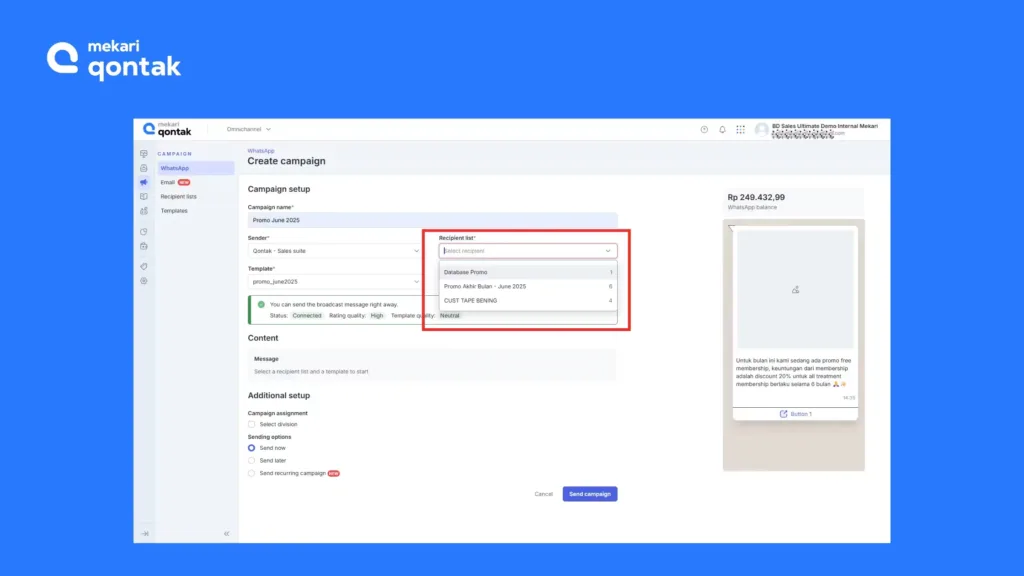
- Click the Recipient List dropdown on the Campaign Setup page.
- Next, select the recipient list that will receive the message.
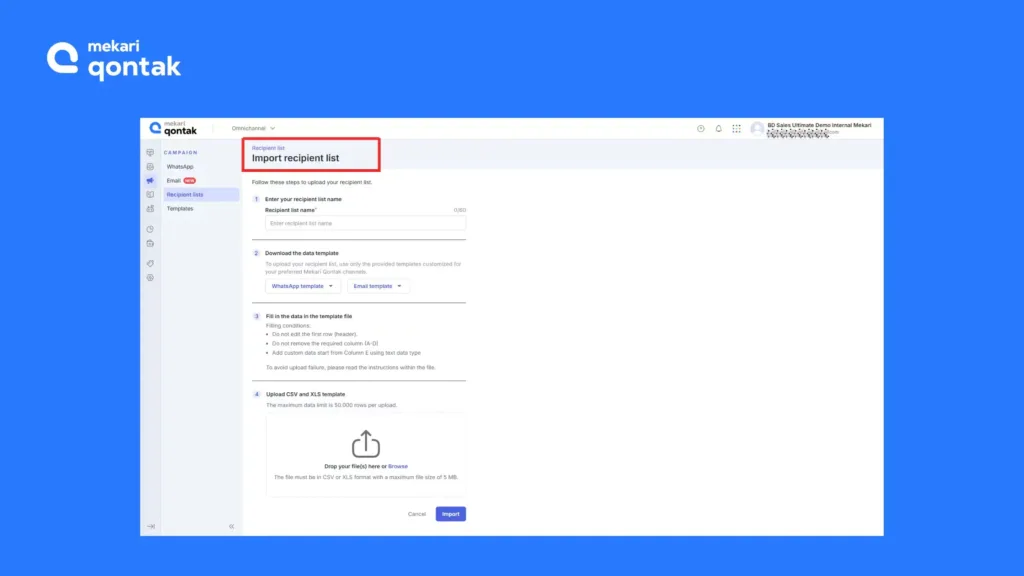
- If you don’t have a recipient list yet, you can also upload a new contact list under the Recipients Lists tab.
4. Write and Customize the Message
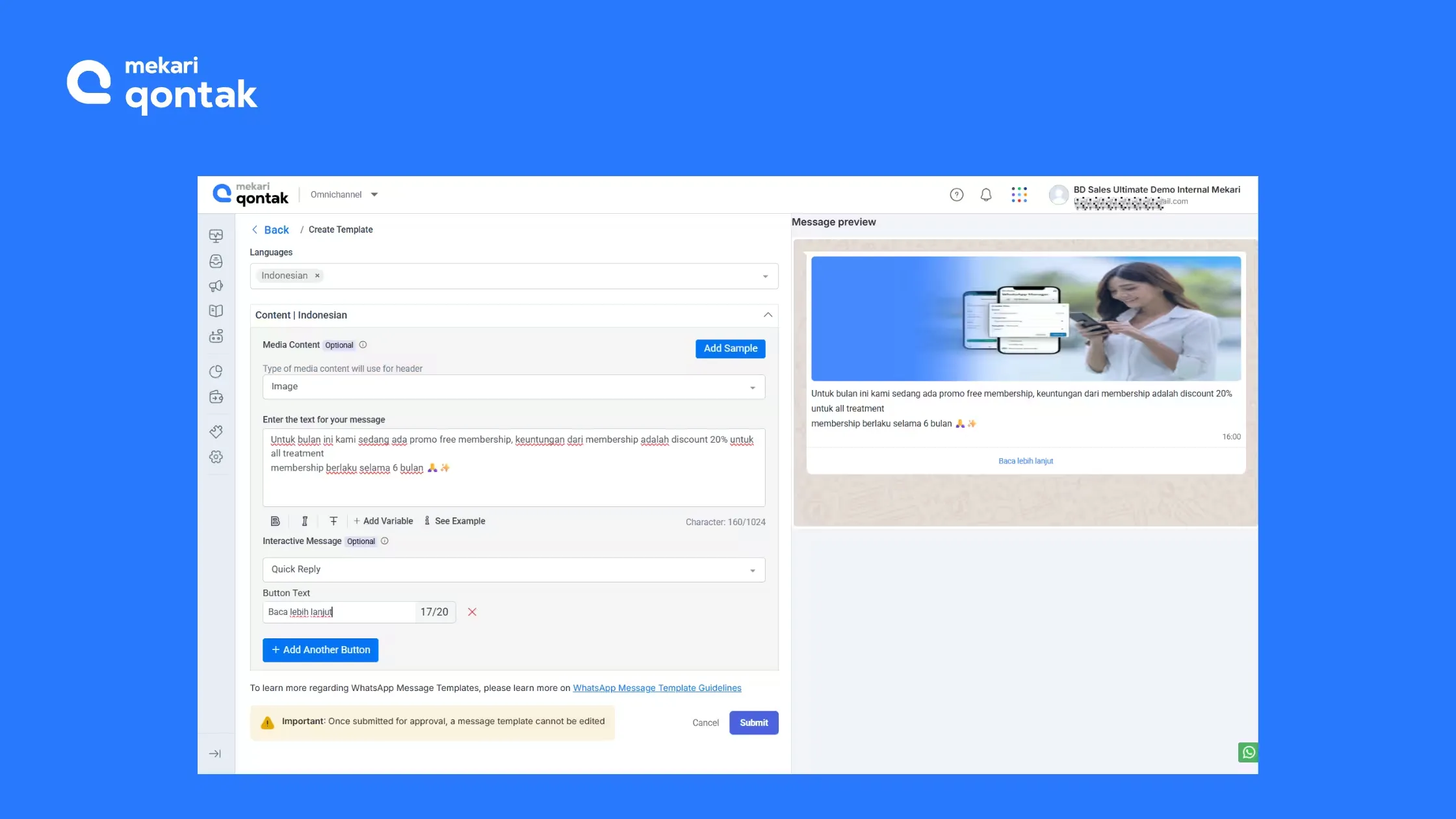
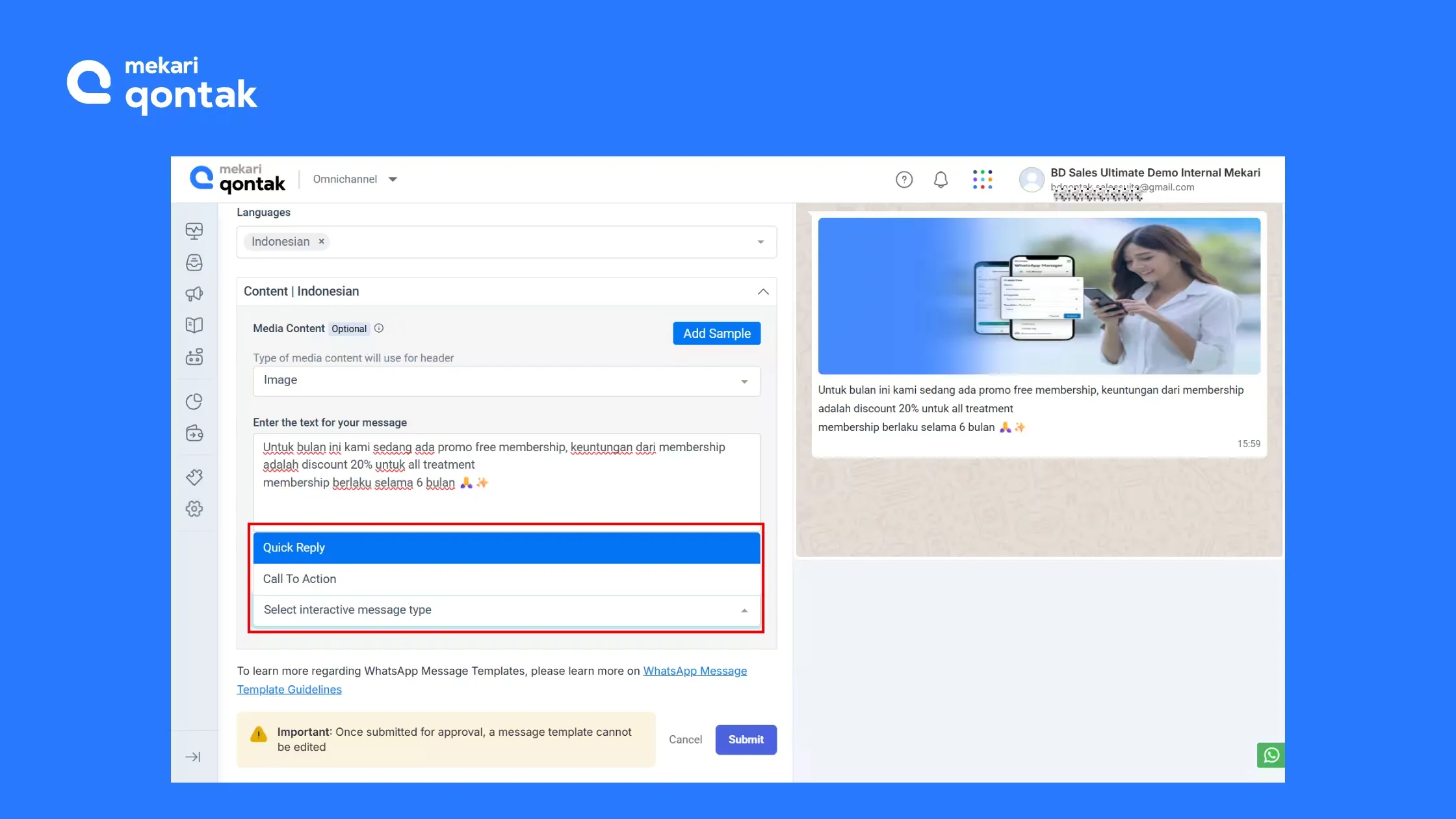
- After filling in the recipient list, select a message template from the Template field.
- However, if you don’t have a message template yet, you can create a new one under the Templates tab.
- In the Templates tab, craft your message content with compelling and clear text. You can add images, videos, documents, and a Call to Action (CTA) to boost communication effectiveness.
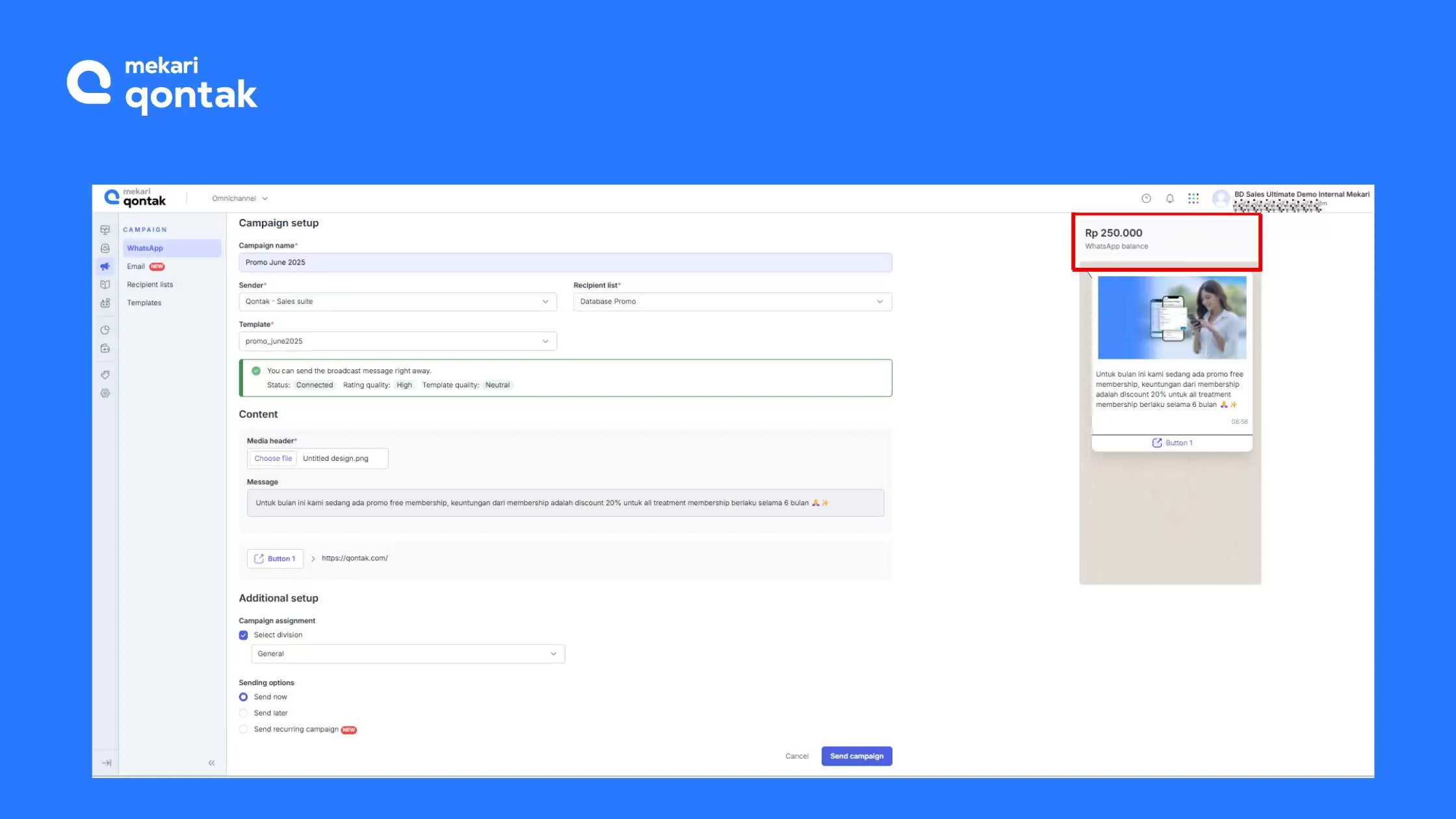
5. Review and Confirm Your Balance
Before sending the WA broadcast message, it’s recommended that you check your balance first. The remaining balance will be displayed in the top right corner of the Campaign Setup page.
Make sure your account balance is sufficient before sending the message. If needed, perform a Top Up to ensure the sending process runs smoothly.
6. Send the Broadcast Message
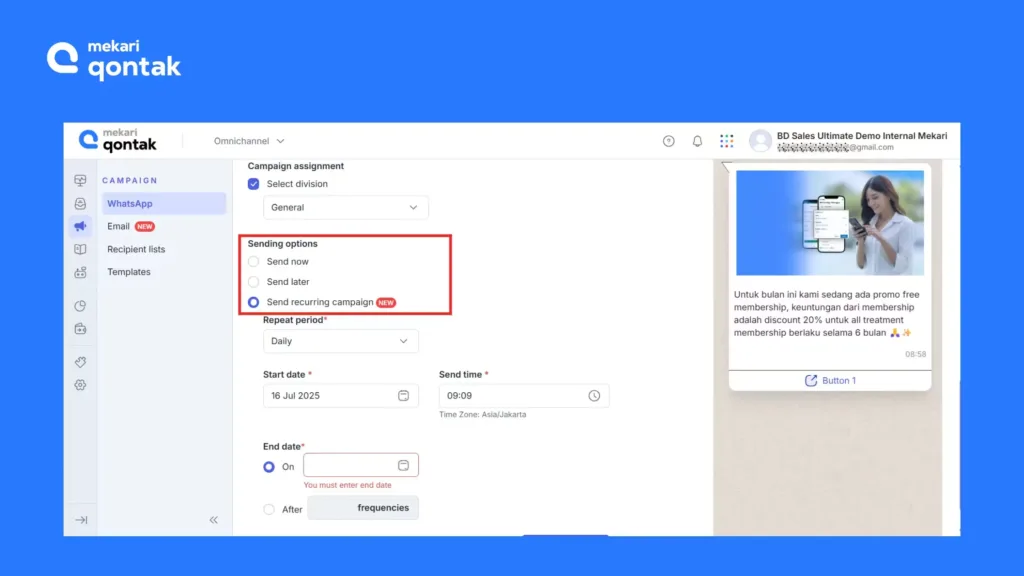
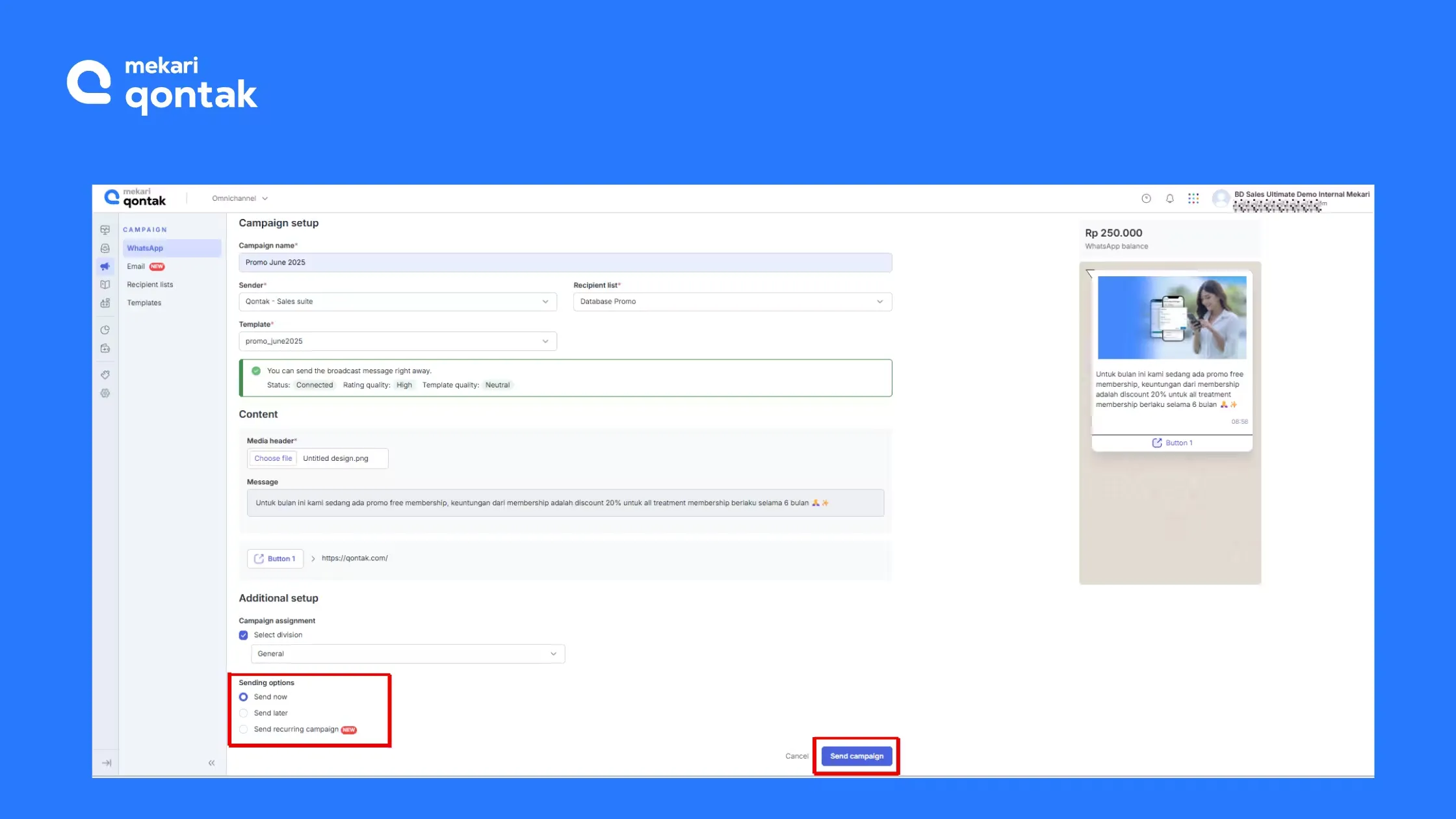
Once you’ve filled in all the required information on the Campaign Setup page, select the Send Now option, then click the Send Campaign button to send the message.
However, if you want to schedule the broadcast message for a later time, select the Send Later option. If you want to send it on a recurring basis, click Send Recurring Campaign.
7. Monitor Broadcast Performance
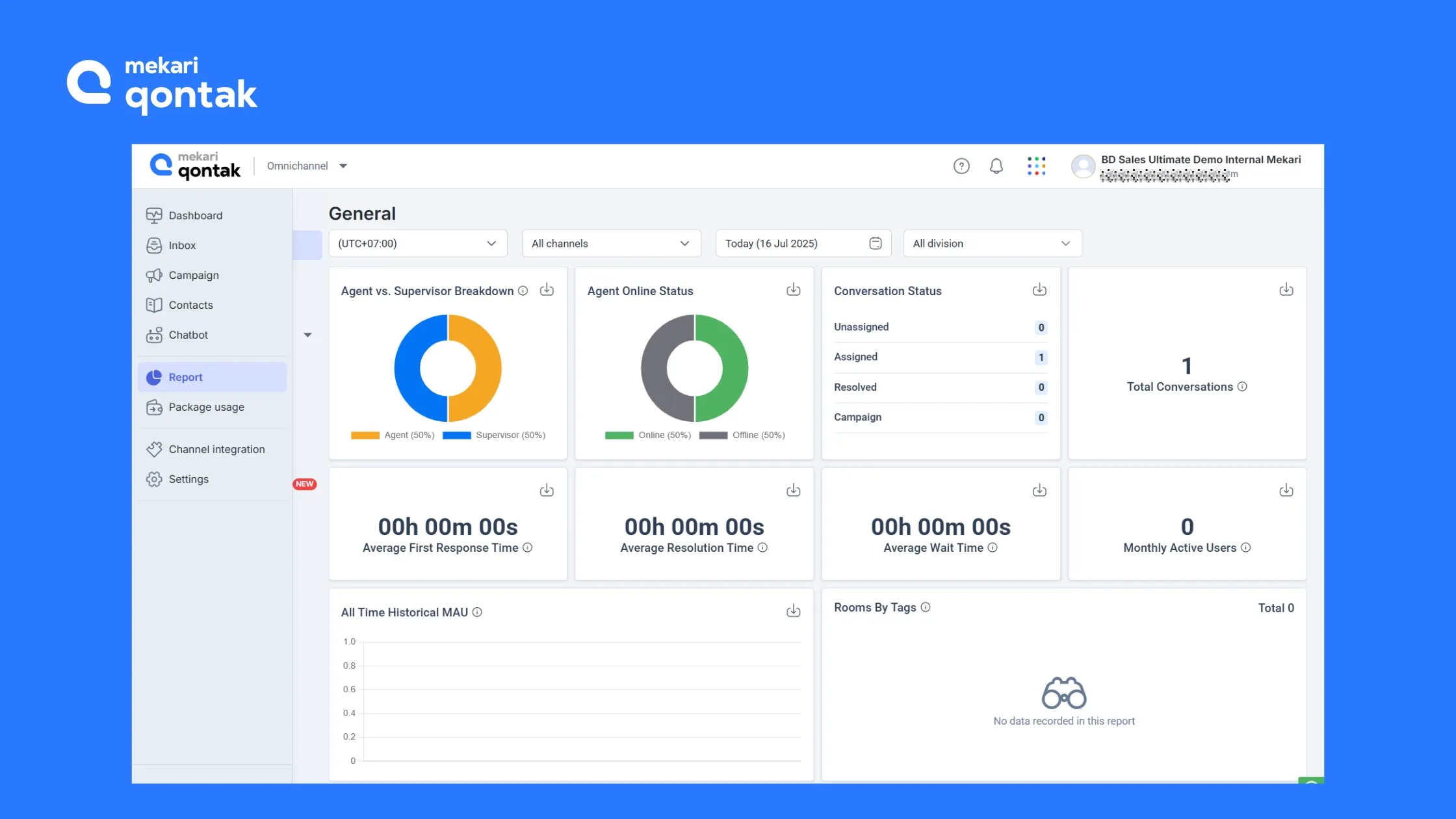
After the broadcast message has been sent, you can monitor the delivery results and analyze message performance metrics through the Report menu on the Mekari Qontak platform.
Note: With these steps, your business can send messages more efficiently and to the right audience. For further details, visit the Mekari Qontak Help Center.
How to Edit a WhatsApp Broadcast List
After successfully creating a WhatsApp broadcast list to send messages, you may want to make changes. It’s quite simple, follow these steps:
- Open the WhatsApp Messenger app.
- Tap Broadcast Lists.
- Tap the “⋮” icon next to the list you want to edit.
- On the List Info screen, you can:
- Change the name of the broadcast list.
- Add or remove recipients from the list by tapping Edit List.
How to Remove WhatsApp Broadcast List
There may come a time when you feel a broadcast list is no longer needed and you’d like to delete it. Here’s how to delete a WA broadcast list:
- Press and hold the WA broadcast list you created.
- A few instruction icons will appear in the top right corner.
- Select “Delete” to remove your broadcast list.
As an additional reference, you can also watch the video below for a more in-depth visual guide on how to send a WhatsApp broadcast.
Limitations of Using the Regular WhatsApp Broadcast Feature
Although the WA broadcast feature is highly useful for communication, there are several limitations that can reduce its effectiveness, especially at scale.
Here are some of the limitations of sending broadcasts through the regular WhatsApp app:
- There is a daily sending limit set by WhatsApp of 256 messages per day.
- There is a risk of having your WA Business account blocked if you exceed the daily message sending limit.
- The business (sender) must save the customer’s (recipient’s) number. If the number is not saved, the message will not be delivered.
- Broadcast messages cannot be personalized.
- An unstable or interrupted internet connection can disrupt the message sending process.
- There is no message tracking feature, so users cannot tell whether a message has been delivered, read, or ignored by the recipient.
- There is a risk of being flagged as spam, especially when messages are sent in large volumes without clear segmentation or sent too frequently.
None of these issues would occur if you used the WhatsApp API for broadcasting without saving contacts.
Sending Broadcast Messages via Regular WhatsApp vs. WhatsApp Business API (Official) Comparison
WhatsApp Business API offers a more flexible solution compared to regular WhatsApp broadcasts. WhatsApp Business API can help businesses manage communication more efficiently and overcome recipient number limitations with its analytics features, CRM integration, and message automation.
Here is a comparison of sending broadcasts using the regular WhatsApp feature versus the WhatsApp Business API.
Use Left/Right arrow keys to scroll horizontally.
| Features | WhatsApp Business | WhatsApp Business API (Official) |
|---|---|---|
| Must Save Recipient’s Contact? | Yes | No |
| Maximum Number of Recipients | 256 contacts | Unlimited |
| Statistical Reports | Not Available | Available |
| CRM Integration | Not Available | Available |
| Risk of Being Blocked | High | Low |
Learn How to Broadcast on WhatsApp and Reach More Customers Today!
Using the right WhatsApp broadcast method will help your business reach many customers in a single send.
However, this approach has its limitations, including restrictions on the number of recipients, the requirement to save the sender’s number, and the absence of a message tracking feature.
The best alternative for improving efficiency is to partner with a trusted WhatsApp BSP Partner like Mekari Qontak. As a trusted BSP, Mekari Qontak provides official WhatsApp Business API services with automation features, analytics, and no risk of being blocked.
So, what are you waiting for? Reach more strategic customers by using Mekari Qontak!
Consult your needs with Mekari Qontak’s expert team and get a free Mekari Qontak demo today!
Frequently Asked Question About How to Send a WhatsApp Broadcast Message (FAQ)
Can I send a WhatsApp broadcast to numbers not saved in my contacts?
Can I send a WhatsApp broadcast to numbers not saved in my contacts?
No, you cannot. Numbers must be saved first when using the standard WhatsApp app. However, by using a WhatsApp Business API partner (BSP) like Mekari Qontak, you can send messages to thousands of contacts without needing to save their numbers.
Is sending broadcasts via WhatsApp API a paid service?
Is sending broadcasts via WhatsApp API a paid service?
Yes, sending broadcast messages through the WhatsApp Business API via platforms like Mekari Qontak incurs costs based on your subscription plan and usage.
Pricing also varies between different BSPs, so it is important to choose a WhatsApp Business API package that best fits your specific business needs.
Can I edit a broadcast list after the messages have been sent?
Can I edit a broadcast list after the messages have been sent?
No, once a broadcast message is sent, the recipient list for that specific broadcast cannot be changed. However, you can manage and update your broadcast lists for any future campaigns.
How do I send WhatsApp messages to multiple numbers using Excel?
How do I send WhatsApp messages to multiple numbers using Excel?
The most common way to send WhatsApp broadcasts via Excel is by using a third-party extension or application. Essentially, this method is similar to sending broadcasts using Chrome extensions on WhatsApp Web, as discussed earlier in this article.
When the extension’s pop-up menu appears, you will be prompted to upload an Excel file containing your list of recipient numbers. Once the Excel contact upload is successful, you can type your message and click the Send button.