







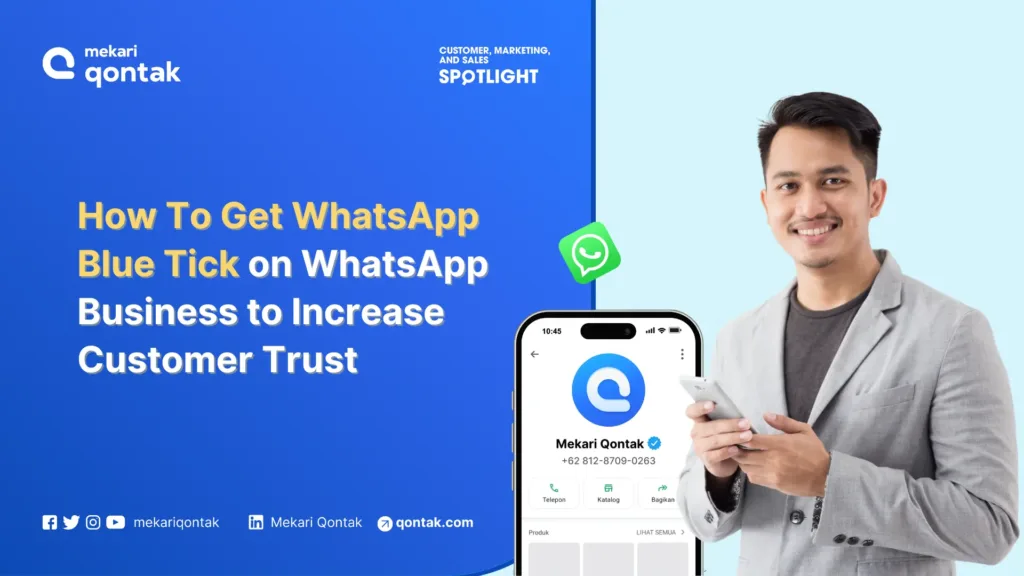
One small mark next to your business name can change the way customers view your WhatsApp account, from “maybe genuine” to “clearly official.” That is the function of the WhatsApp blue tick.
The blue tick (formerly known as the WhatsApp green tick) becomes a trust signal that is immediately visible when customers first open your profile or receive a message from your business. This verification badge becomes a significant differentiator.
In this article, Mekari Qontak Blog will cover in full what the WhatsApp blue tick is, its benefits, the requirements that must be met, the official paths to obtaining it, and tips for increasing your chances of getting the WA blue tick.
What Is the WhatsApp Blue Tick?
The WhatsApp blue tick is a verification badge (Verified Badge) on a WhatsApp Business profile that indicates the business is an official and trusted account.
This mark shows that your business has been verified by WhatsApp, so the authenticity of the profile has been guaranteed by Meta. This blue-colored symbol makes customers more confident when interacting and reduces the risk of fake accounts.
Previously, similar verification was known by the term green tick. Meta then changed it to a blue tick to standardize verification identity across their entire platform ecosystem, including Facebook and Instagram.
Businesses can obtain this verification directly from Meta or through an official Business Solution Partner (BSP) such as Mekari Qontak, which makes the verification process for your WhatsApp Business account easier.
This WhatsApp blue tick is different from the double blue tick on WA messages, which means “message has been read.” The blue tick here is a badge that appears permanently on your business account profile, visible to anyone who opens the profile or receives a message from that account.
Benefits of Having the Blue Tick (Verified) on WhatsApp for Business
The verified blue tick on a WhatsApp account indirectly provides a number of advantages for businesses, such as the following:
1. Consistent Branding
The WhatsApp blue tick, which is aligned with the Meta ecosystem, helps maintain consistent branding across WhatsApp, Instagram, and Facebook.
This consistency strengthens brand identity and makes it easier for users to recognize verified business accounts across all Meta platforms.
2. Increased User Trust
The WhatsApp blue tick is universally regarded as a symbol of verification and trust. The presence of this mark on a WA profile can increase users’ confidence that the business can be trusted. This encourages more interaction and transactions from customers.
3. Priority Support
Owners of verified blue tick WA accounts will get faster and more personal access to the WhatsApp support team. This includes support via email and live chat to report issues related to the business account.
This way, account owners can get solutions faster when there is a problem with their WhatsApp Business account.
4. Account Protection
The verified blue tick helps protect official business accounts through proactive monitoring for potential impersonation. This feature is designed to prevent others from impersonating the identity of a registered business.
5. Accessible on Multiple Devices
A verified WhatsApp Business account can be accessed from several devices at once. This makes it easier to manage more orders and answer customer questions more efficiently.
Differences Between the Blue Tick from WhatsApp BSP and Meta Verified
Use Left/Right arrow keys to scroll horizontally.
| Aspect of Difference | WA Blue Tick from BSP | WA Blue Tick from Meta |
|---|---|---|
| How to obtain | Assisted by the BSP’s professional team from start to finish | Register independently directly from the WhatsApp Business account |
| Cost | Varies according to the BSP’s service package | Monthly subscription starting at USD 14.99 |
| Additional features | Includes CRM integration, AI chatbot, omnichannel inbox, and performance reports | Limited to account identity verification |
| Risk of rejection | Lower because it is managed by an experienced team | Higher if documents or data are inconsistent |
| Suitable for | Medium-to-large scale businesses with high communication volume | Businesses that need basic verification on the WhatsApp Business App |
Requirements to Get the WhatsApp Blue Tick (Verified) for Business
As mentioned earlier, to apply for the verified WhatsApp blue tick, there are requirements and eligibility criteria that must be met by both the applicant and the business. These requirements include the following:
1. Applicant Requirements
The requirements you must meet to apply for Meta Verified on WhatsApp are as follows:
- At least 18 years old.
- Have a phone number in a country where Meta Verified for business is available.
- Comply with the Meta Verified for Business Terms of Service and the WhatsApp Business Terms of Service.
2. Business Account Requirements
Meanwhile, the WhatsApp Business account must meet the following requirements:
- Have a presence on the WhatsApp Business app for a certain number of days.
- Have recently sent a message.
- Be located in a country where Meta Verified for WhatsApp Business operates.
- Have a profile name and profile picture.
- Not have an active subscription to WhatsApp Business Premium.
- Not have an active Meta Verified subscription through Meta Business Suite.
These eligibility requirements may change as WhatsApp improves the product experience for users.
Note that Meta Verified is currently not available for Government, non-profit organizations, and political organizations.
How to Get the WhatsApp Blue Tick Through Meta Verified
Here is the easy way to get the blue tick on WhatsApp for business through the Meta Verified service:
1. Register Your WhatsApp Account
The first step begins with registering your Business WhatsApp account with Meta/Facebook Business Manager. However, before that, make sure your business meets the eligibility requirements set by Meta for WhatsApp.
2. Prepare Business Information and Documents
The second step, you will be asked to provide details about the company. The business contact information that must be filled in includes name, address, phone number, website, tax ID, and owner’s name.
In addition, you may also be asked for additional documents or bank verification if needed.
Then, Meta will check the information and conduct additional checks if necessary. If there is a discrepancy, you can update the information to match public records.
3. Determine a Subscription Package
To get the blue tick through the Meta Verified service, you must choose a subscription package that suits your needs. As quoted from Meta Verified Business, here are some of the available subscription packages.
- Standard Business Package: USD 14.99 per month.
- Plus Business Package: USD 49.99 per month.
- Premium Business Package: USD 149.99 per month.
- Max Business Package: USD 349.99 per month.
4. Submit for Verification
After preparing all the required documents, you can submit a request for the WhatsApp verified badge to Meta in the following way:
- Open the chats page on WhatsApp, select the “Settings” menu.
- Find and click “Meta Verified.” If you don’t see the ‘Meta Verified’ option, it may not yet be available to you. Join the waitlist to be notified when this feature becomes available.
- Select “Next.”
- Choose the subscription package you want to use.
- Confirm your WhatsApp business account by pressing the “Next” button.
- If your business account meets the eligibility requirements, you will be asked to set up a payment method and make a payment by clicking the “Pay” button and completing the payment process. This payment will be refunded if Meta is unable to verify your business.
- Click “Next.”
- Select your business. Then, click “Next.” If your WhatsApp business account does not appear as an option, select “None of these matches my business.”
- Choose a verification method. Then, press the “Next” button.
- Provide your verification information, then press “Next or Submit.”
- Finally, click “Done.”
5. Waiting for the WhatsApp Business Account to Be Verified
After submitting the application, Meta will review your application and provide a result within 3 business days. You will receive a notification on whether the account is approved through the verification method you selected.
Important After verification, business information such as name, category, address, email, and website cannot be changed. If there are any changes, the verification will be revoked, and you will need to reapply.
How to Get the WhatsApp Blue Tick Through an Official WhatsApp BSP
If you want an easier and faster process, businesses can work with an official WhatsApp BSP partner such as Mekari Qontak. With this service, verification is carried out directly by a team of experts with no risk of rejection.
1. Have a WhatsApp Business API Account from Mekari Qontak
Register with Mekari Qontak. Contact Mekari Qontak to register for the WhatsApp Business API service. The Mekari Qontak team will guide you through the initial registration process.
- Set Up a Meta Business Manager Account. If you don’t already have a Meta Business Manager account, the Mekari Qontak team will help you create one.
- Choose a WhatsApp Number. You will be asked to provide a dedicated phone number that has never been registered on the personal WhatsApp or WhatsApp Business app.
2. Prepare Business Legal Documents
Once your API account is ready, Mekari Qontak will help you gather the documents needed to prove your business’s legitimacy to Meta.
- Prepare legal documents, such as SIUP (Trading Business License), TDP (Company Registration Certificate), NPWP (Taxpayer Identification Number), and other relevant business certificates (for example, NIB or the deed of establishment).
- Business Information: You will also need to prepare additional information such as the office address, official website, and a valid business email.
3. Submitting Business Verification in Meta Business Manager
The Mekari Qontak team will guide you in submitting business verification in Meta Business Manager.
- Log in to Meta Business Manager.
- Go to the “Security” or “Security Center” section in Meta Business Manager.
- Find the “Business Verification” option. This is where you will upload all the legal documents you have prepared.
- Next, you will be asked to fill out a form with your business details (name, address, phone number) that must match exactly with the legal documents uploaded.
4. Domain Verification and Review by Meta
After submitting the documents, Meta will carry out technical verification and review.
- Domain Verification. You will be asked to verify your domain via DNS, HTML, or Meta Tag. Mekari Qontak will assist you with this technical process.
- Once all documents and technical verification are complete, Meta will review your application.
- If approved, you will receive a notification, and the verified badge (blue tick) will appear on your WhatsApp Business API account profile.
In addition to WA blue tick verification, Mekari Qontak also provides additional features such as:
- Agent Report to monitor customer service team performance in real time.
- Data Management that stores and manages customer information automatically.
- Multi-Channel Integration with other platforms such as Instagram, Facebook, Telegram, Twitter, Shopee, and Tokopedia.
With this, businesses not only get the blue tick, but also improve operational efficiency and customer trust.
Reasons WhatsApp Blue Tick Applications Are Often Rejected
Here are several reasons WhatsApp blue tick applications are often rejected by Meta.
1. Inconsistent Data Across Documents
The most common reason is that the company name on the SIUP differs from the one on the deed of establishment, or the office address in Meta Business Manager does not exactly match what is listed in the legal documents.
Meta strictly verifies all of this, and even a difference in writing “PT” vs. “P.T.” can become a problem.
2. The Business’s Online Reputation Is Not Yet Strong Enough
Meta does not only verify documents, but also evaluates your business’s digital presence: Is your website professional? Is there media coverage? Are social media accounts active and consistent?
Businesses with a minimal digital footprint tend to find it more difficult to get approval.
3. The Account Falls Into a Prohibited Category
As mentioned earlier, there are business categories that are automatically rejected by Meta’s system. Applications from these categories will not be processed, regardless of the quality of the documents.
4. The Account Does Not Meet the Minimum Requirements
Accounts that are newly created, have never actively sent messages, or do not yet have a complete profile photo and business name are generally rejected immediately at the initial screening stage.
If your application is rejected, Meta requires businesses to wait at least 30 days before reapplying. Use this time to fix all existing inconsistencies.
Tips for Increasing Your Chances of Getting the WhatsApp Blue Tick
1. Use the WhatsApp Business API Through an Official WhatsApp BSP
The blue tick is only given to businesses that use the WhatsApp Business API, not the regular WhatsApp Business Platform.
This is because the API cannot be accessed directly by the public, so you must work with an official WhatsApp Business Solution Provider (BSP).
By using the API, you show Meta that your business is serious, has a large operational scale, and needs advanced features.
2. Enable Two-Step Verification
Security is a top priority for Meta. Enabling two-step verification is a simple but important step to show that your business account is secure and managed professionally.
This step makes your account harder to hijack, which is one of the factors Meta considers when granting verification.
3. Prepare and Complete Valid Business Legal Documents
Meta needs to verify that your business is a legitimate legal entity. Therefore, prepare all the necessary legal documents, from SIUP, NPWP, TDP, to the Company Establishment Deed or other business licenses.
Make sure all these documents are still valid, the information is accurate, and it matches the data you registered in Meta Business Manager.
4. Strengthen Online Visibility and Brand Awareness
The blue tick is also given to brands that are popular and widely known. Meta will review your business’s reputation across various platforms, such as your website, media coverage, and social media.
The more evidence of your business’s presence and popularity online, the greater the likelihood that Meta will approve your verification request.
Get the Blue Tick (Verified Badge) on Your WhatsApp Business Account with Mekari Qontak
To get the official WhatsApp blue tick, businesses must join the waitlist and meet Meta’s requirements. There are two ways to do this, applying for verification directly with Meta or through an official BSP such as Mekari Qontak.
Using Mekari Qontak official BSP service offers further advantages. In addition to the WhatsApp Business API blue tick, businesses can take advantage of Mekari Qontak AI Chatbot for more personalized automated responses, as well as multi-platform integration with Instagram, Facebook, Telegram, Tokopedia, and Shopee.
Want a faster and easier process? Try the Mekari Qontak WhatsApp demo or consult your business needs now.
References